This is a free study guide for the CompTIA A+ Core 1 exam, code 220-1201. It follows the official exam objectives in CompTIA’s own order, domain by domain and objective by objective, and explains each topic in plain English, with reference tables for ports, Wi-Fi, cables, memory, RAID and cloud models.
A+ takes two exams. Core 1 covers hardware and networking, and Core 2 (220-1202) covers operating systems and security, according to CompTIA’s A+ page, which also says they can be taken in any order. Core 2 has its own A+ Core 2 study guide.
The test details and domain weights come from CompTIA’s A+ Core 1 V15 exam page and the Core 1 exam objectives (document version 4.0). Every technical fact after that links to the standards body or vendor that publishes it, and all sources are listed at the end.
In this guide
A+ Core 1 (220-1201) at a glance
| Exam code | 220-1201 (A+ Core 1, version V15) |
|---|---|
| Launch date | March 25, 2025 |
| Number of questions | Maximum of 90 |
| Question types | Multiple-choice (single and multiple response), drag-and-drop and performance-based |
| Time | 90 minutes |
| Passing score | 675 on a scale of 100 to 900 |
| Recommended experience | 12 months of hands-on experience as an IT support specialist |
| Languages | English, German and Japanese |
| Retirement | Usually three years after launch; CompTIA estimates 2028 |
| To earn A+ | Pass Core 1 and Core 2 (220-1202), both from the same version |
CompTIA does not allow mixing versions, so both exams must be V15. Core 2 has the same 90-question maximum and 90-minute limit, with a passing score of 700. A+ is valid for three years from the certification date, and CompTIA’s renewal policy lets holders renew through continuing education instead of retaking the exams.
What’s changing
Checked against CompTIA’s A+ pages on November 15, 2026. No new version has been announced. The V15 exams, 220-1201 (Core 1) and 220-1202 (Core 2), launched on March 25, 2025, and CompTIA puts their retirement at “usually three years after launch (estimated 2028)” (Core 1, Core 2). Both cores must come from the same version.
For every upcoming exam date, see the IT certification exam calendar.
How to use this guide
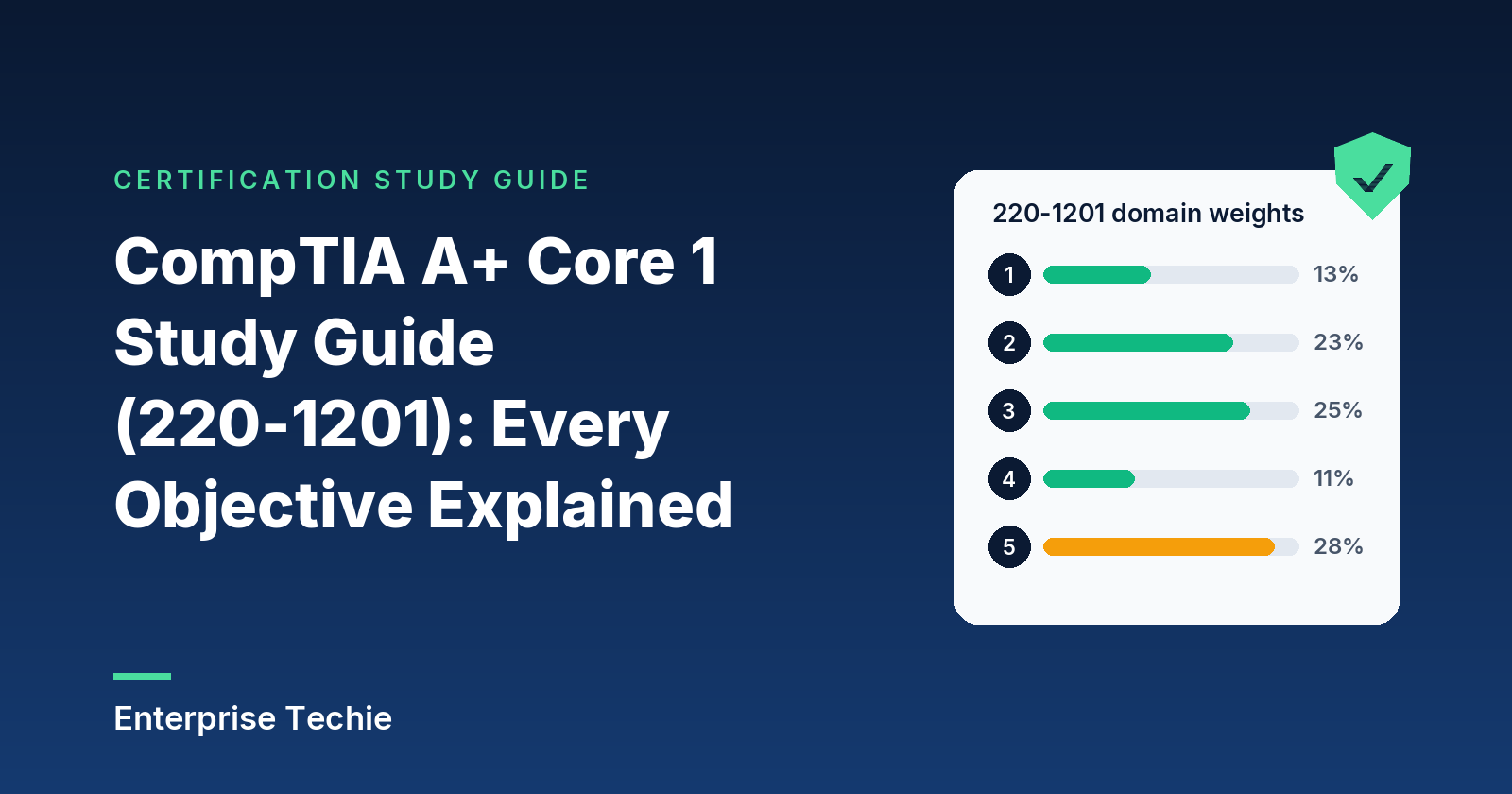
Core 1 has five domains, each with a share of the exam, and this guide spends its words in roughly the same proportion. The two right-hand columns are counted from the objectives document.
| Domain | Share of exam | Objectives | “Given a scenario” objectives |
|---|---|---|---|
| 1.0 Mobile Devices | 13% | 3 | 2 |
| 2.0 Networking | 23% | 8 | 1 |
| 3.0 Hardware | 25% | 8 | 4 |
| 4.0 Virtualization and Cloud Computing | 11% | 2 | 0 |
| 5.0 Hardware and Network Troubleshooting | 28% | 6 | 6 |
| Total | 100% | 27 | 13 |
Troubleshooting is the largest domain at 28 percent, and all six of its objectives are scenario-based. Together with Hardware, the two hands-on domains make up 53 percent of the exam.
Each numbered heading below is one objective, reworded, and most end with an Exam tip where two ideas are easy to confuse. For the objective list on its own, covering both cores, see CompTIA A+ exam objectives explained. For practice questions, see the free A+ practice questions.
The objectives document also prints CompTIA’s troubleshooting method: identify the problem, form a theory of probable cause, test it, plan and carry out the fix, confirm the whole system works, and document the outcome. CompTIA states that the method itself is not tested, but it is the habit the Domain 5 scenarios reward.
Domain 1: Mobile Devices (13%)
Laptops, phones and tablets: the parts inside them, what plugs into them, and how they get online and stay managed. Three objectives, two of them scenario-based.
1.1 Laptop and mobile hardware: watching for wear and replacing parts
This objective is about knowing which parts of a portable device can be replaced and what to watch as they wear: the battery, keyboard, memory, storage, wireless cards, Wi-Fi antenna, cameras, microphones and the biometric and near-field sensors.
Batteries wear out by design. Apple calls all rechargeable batteries consumable components that become less effective as they chemically age, and its iPhone battery page explains that Maximum Capacity measures the battery against its capacity when new. Apple designs iPhone 14 and earlier batteries to keep 80 percent of original capacity at 500 complete charge cycles, and iPhone 15 and later at 1,000 cycles, under ideal conditions. A battery well below that, or one that is visibly swelling, is a replacement job.
Laptops take the smaller SODIMM memory module, while desktops take full-size DIMMs (see 3.3). Laptop storage is either a 2.5-inch drive or an M.2 card (see 3.4), so check which one the bay or slot accepts before ordering.
Wireless cards connect to antenna leads that run elsewhere in the chassis, so reconnecting those leads is part of any card or display swap, and a weak signal right after a repair is a reason to check them first. Camera and microphone complaints are usually checked in software before the hardware: privacy permissions, a physical shutter or switch, and drivers. Fingerprint readers, face sensors and the near-field scanner used for contactless payment are the physical privacy and security components in the list.
Exam tip: SODIMM and DIMM modules are not interchangeable, even within one DDR generation. Their sizes and pin counts differ, so laptop memory fits only laptop slots.
1.2 Mobile accessories and the ways they connect
| Method | What to know |
|---|---|
| USB-C | A reversible connector: USB-IF’s guidelines say it does not matter which side of the plug goes in. USB-IF also states that USB Type-C is not USB 3.2 or USB4: the shape says nothing about speed. |
| microUSB and miniUSB | Smaller USB connectors found on older phones, cameras and peripherals. |
| Lightning | Apple’s connector on earlier iPhones and many accessories. Apple says iPhone 15 and later models have a USB-C connector instead. |
| NFC | Short-range radio at 13.56 MHz with a typical range of up to 2 cm, according to the NFC Forum. Used for contactless payment and tap-to-pair with Bluetooth accessories. |
| Bluetooth | Radio in the unlicensed 2.4 GHz ISM band. Bluetooth Classic is mainly used for wireless audio, and Bluetooth Low Energy is designed for very low power operation (Bluetooth SIG). |
| Tethering and hotspot | Sharing a phone’s cellular data with other devices. Apple’s Personal Hotspot shares it over Wi-Fi, Bluetooth or USB. |
The accessories in the objective are the stylus, headsets, speakers and webcams, plus pointing devices: trackpads, drawing pads and the track point, the small pointing stick set between the keys on some laptop keyboards. Docking stations and port replicators both turn a single laptop connection into desk-side ports for displays, wired networking and USB devices; a docking station is generally the fuller-featured of the two.
Exam tip: treat USB-C as a shape. The same connector can run at USB 2.0’s 480 Mbps or at USB4 rates, so a slow transfer over USB-C usually comes down to the port or cable rating.
1.3 Getting mobile devices online and supporting their apps
Cellular data comes in generations. 5G is the system 3GPP defines from Release 15 onward, and it supports almost all of the features of 4G LTE. Cellular data can be switched off on the device, which matters on plans with data caps, because background sync of mail, photos and cloud storage can use up an allowance unnoticed.
The SIM identifies the subscriber to the carrier. Apple describes an eSIM as an industry-standard digital SIM built into the iPhone, which removes the need for a physical card, and says one iPhone can manage up to eight or more eSIMs.
Bluetooth pairing follows the same pattern everywhere. In Apple’s steps: turn on Bluetooth, make the accessory discoverable using its own instructions, tap its name when it appears, and enter a PIN or passcode if asked. Then test it by playing audio, typing or making a call.
Location services combine several sources. Apple’s Location Services uses cellular, Wi-Fi, GPS and Bluetooth information, which is why the objective lists both GPS and cellular location services.
Mobile device management (MDM) is how an organization enrolls and controls devices. In Microsoft Intune, MDM manages the whole device, including settings, security and apps, and can wipe it if it is lost. Mobile application management (MAM) manages only the work apps and their data, which Microsoft says is typical for personal devices in bring-your-own-device (BYOD) setups. Either way, policies push required settings and corporate applications to the device. Synchronization then keeps mail, calendars, contacts and files the same across devices through the work or personal cloud account.
Exam tip: MDM controls the whole device; MAM controls only the work apps on it. A BYOD scenario that must leave personal data untouched points to app-level management.
Domain 2: Networking (23%)
Ports, Wi-Fi, network services, and the hardware and settings of a small office or home network. Eight objectives, one scenario-based.
2.1 TCP and UDP: port numbers, protocols and what each one does
TCP, defined in RFC 9293, provides a reliable, in-order byte stream between two hosts. UDP, defined in RFC 768, sends messages with a minimum of protocol mechanism and makes no promise of delivery or duplicate protection; the RFC itself says applications that need ordered, reliable delivery should use TCP.
| Port | Protocol | Transport | Used for |
|---|---|---|---|
| 20, 21 | FTP | TCP | File transfer: 21 carries commands, 20 is the server’s default data port (RFC 959) |
| 22 | SSH | TCP | Encrypted remote login (RFC 4253) |
| 23 | Telnet | TCP | Remote terminal sessions (RFC 854) |
| 25 | SMTP | TCP | Sending and relaying mail (RFC 5321) |
| 53 | DNS | UDP and TCP | Name resolution (RFC 1035) |
| 67, 68 | DHCP | UDP | Clients send to server port 67; servers reply to client port 68 (RFC 2131) |
| 80 | HTTP | TCP | Web traffic (RFC 9110) |
| 110 | POP3 | TCP | Retrieving mail from a server mailbox (RFC 1939) |
| 137 to 139 | NetBIOS/NetBT | 137 names, 138 datagrams (UDP), 139 sessions (TCP) | Legacy Windows naming and file sharing (RFC 1002) |
| 143 | IMAP | TCP | Managing mail kept on the server (RFC 9051) |
| 389 | LDAP | TCP | Directory queries (RFC 4511) |
| 443 | HTTPS | TCP | HTTP over TLS (RFC 9110, RFC 2818) |
| 445 | SMB/CIFS | TCP | Windows file and printer sharing (Microsoft) |
| 3389 | RDP | TCP and UDP | Remote Desktop (Microsoft) |
The IANA port registry lists most of these numbers for both TCP and UDP, but each protocol’s specification decides which is used; IANA even marks UDP 143 as reserved. Microsoft notes that shares using SMB2 or later do not use NetBIOS ports 137 to 139, so TCP 445 is the port modern SMB needs.
Exam tip: DNS uses both transports. RFC 1035 sends ordinary queries over UDP 53 and zone transfers over TCP 53, and RFC 7766 requires DNS software to support TCP. DHCP runs only over UDP.
2.2 Wireless networking: bands, channels and standards
Wi-Fi uses three bands. Cisco’s RF reference guide explains that 2.4 GHz travels farther than 5 GHz but is crowded with non-Wi-Fi interference (see 5.5). In 2.4 GHz, channels are 20 MHz wide and only 1, 6 and 11 avoid overlapping; in the U.S. they are the only three for non-interfering use. 5 GHz has twenty-three 20 MHz channels; 6 GHz, from 5925 to 7125 MHz, adds fifty-nine.
Bonding joins channels into 40, 80 and 160 MHz, and 320 MHz for Wi-Fi 7 in 6 GHz, per the Wi-Fi Alliance. Cisco does not recommend bonding in 2.4 GHz for enterprise networks. Regulations decide which channels can be used: in the U.S., part of the 5 GHz band (UNII-2) is shared with radar, so access points there must use Dynamic Frequency Selection (DFS).
| IEEE standard | Wi-Fi Alliance name | Bands |
|---|---|---|
| 802.11a | None | 5 GHz |
| 802.11b | None | 2.4 GHz |
| 802.11g | None | 2.4 GHz |
| 802.11n | Wi-Fi 4 | 2.4 and 5 GHz |
| 802.11ac | Wi-Fi 5 | 5 GHz (most Wi-Fi 5 products are dual-band, adding 2.4 GHz) |
| 802.11ax | Wi-Fi 6, and Wi-Fi 6E in the 6 GHz band | 2.4, 5 and 6 GHz |
| 802.11be | Wi-Fi 7 | 2.4, 5 and 6 GHz |
The Wi-Fi Alliance introduced the generation names for 802.11n, 802.11ac and 802.11ax, and bases Wi-Fi 7 on 802.11be; the older bands come from Cisco. Bluetooth shares 2.4 GHz with Wi-Fi (2.402 to 2.480 GHz, per the Bluetooth SIG). RFID uses radio to identify tagged items, and the NFC Forum notes that NFC devices can work with ISO/IEC 14443 contactless cards.
Exam tip: Wi-Fi 6E is not a separate IEEE standard. It is 802.11ax extended into the 6 GHz band; the next standard is 802.11be, sold as Wi-Fi 7.
2.3 Services that networked hosts provide
| Role | What it does |
|---|---|
| DNS server | Answers name lookups with records such as an A record’s host address (RFC 1035) |
| DHCP server | Leases IP addresses, subnet mask and default gateway (Microsoft Learn) |
| File share and print server | Hold shared files (SMB on Windows), print queues and drivers |
| Mail server | Sends mail with SMTP and serves mailboxes over IMAP or POP3 |
| Syslog | Collects event notification messages from devices (RFC 5424) |
| Web and database servers | Serve sites over HTTP(S); store data applications query |
| AAA | Authentication identifies the user, authorization decides what that user may access, and accounting measures the resources used (Cisco) |
| NTP | Synchronizes computer clocks across a network (RFC 5905) |
Among internet appliances, a spam gateway filters mail before the mail server, a unified threat management (UTM) appliance combines several security functions, and a load balancer spreads requests across servers. A proxy server, in the definition NIST’s glossary carries, services client requests by forwarding them to other servers. NIST describes SCADA as a computerized system that gathers and processes data and applies operational controls over long distances, as in power transmission and pipelines, and IoT devices as user or industrial devices connected to the internet.
Exam tip: authentication proves who someone is, authorization decides what that person may do, and accounting records what was used.
2.4 Common network settings: DNS records, DHCP, VLANs and VPNs
| DNS record | What it holds |
|---|---|
| A | A host’s IPv4 address (RFC 1035) |
| AAAA | A single IPv6 address (RFC 3596) |
| CNAME | An alias, pointing to the canonical name (RFC 1034) |
| MX | The mail exchange for a domain, with a preference value where lower is preferred (RFC 1035) |
| TXT | Text strings, used to publish SPF, DKIM and DMARC records |
Those three TXT-based records fight spoofed mail. SPF (RFC 7208) lets a domain authorize the hosts allowed to use its name in mail. DKIM (RFC 6376) signs each message, and the receiver checks the signature with a public key fetched from the signer’s domain. DMARC, now RFC 9989, which made RFC 7489 obsolete, lets the domain owner say how failing mail should be handled and ask for reports.
In DHCP, per Microsoft Learn, the scope is the pool of addresses handed out, exclusions are addresses never offered, a reservation ties one address to one client, and the lease is how long a client may use an address before renewing. A VLAN splits one switched network into separate logical networks under IEEE 802.1Q. A VPN, in NIST SP 800-113’s words, is a virtual network built on top of existing networks that provides a secure communications mechanism.
Exam tip: a CNAME points to a name, while A and AAAA records point to addresses. An MX record also names a host, not an IP address.
2.5 Networking hardware and how the devices differ
Cisco’s short version: switches let devices on a network communicate, and routers let different networks communicate. An unmanaged switch needs no configuration; a managed switch adds security and features. An access point joins wireless clients to the wired network, and a patch panel terminates building cable runs. A firewall, per NIST SP 800-12, is a gateway that limits access between networks in line with local security policy.
| PoE name | IEEE standard | Type | Maximum power |
|---|---|---|---|
| PoE | 802.3af | Type 1 | 15.4 W |
| PoE+ | 802.3at | Type 2 | 30 W |
| PoE++ | 802.3bt | Type 3 | 60 W |
| 4PPoE | 802.3bt | Type 4 | 90 W |
PoE figures are from Cisco’s PoE guide; power comes from a PoE switch or an injector, an inline unit that powers one cable. At the edge, a cable modem serves cable broadband, which CableLabs describes as running over hybrid fiber coax networks; a DSL modem serves digital subscriber line service; and an optical network terminal (ONT) is where fiber service ends at the premises. Every network interface card has a MAC address, which the IEEE Registration Authority calls an EUI-48 when it is a 48-bit universally unique address, typically built from a 24-bit OUI assigned to the manufacturer.
Exam tip: 802.3af is 15.4 W, 802.3at is 30 W, and 802.3bt covers both 60 W (Type 3) and 90 W (Type 4).
2.6 Setting up a small office or home network
| Term | Meaning |
|---|---|
| Private IPv4 | 10.0.0.0/8, 172.16.0.0/12 and 192.168.0.0/16, set aside for private networks by RFC 1918 |
| Public IPv4 | Globally unique, internet-reachable addresses; a SOHO router shares one through NAT |
| IPv6 | 128-bit addresses written as eight hexadecimal groups, where “::” can replace one run of zero groups, once per address (RFC 4291) |
| APIPA | 169.254.0.0/16: a host gives itself an address here for local-link use when no other configuration method is available (RFC 3927) |
| Static or dynamic | Entered by hand, or leased from a DHCP server |
| Subnet mask | Marks the network part of an IPv4 address |
| Gateway | The router address used to reach other networks; DHCP delivers it as the Router option (Microsoft Learn) |
Servers and printers generally get static addresses or reservations; laptops and phones take dynamic ones.
Exam tip: a 169.254.x.x address means the host never heard back from a DHCP server. The fix is upstream: the cable, the Wi-Fi association or the DHCP server itself.
2.7 Internet connection types and network types
The objective lists six internet connection types: fiber to an ONT, cable over hybrid fiber coax, DSL over telephone lines, cellular 4G or 5G through a hotspot or cellular router, satellite where wired service does not reach, and a wireless internet service provider (WISP) over fixed radio links.
| Network type | Scope |
|---|---|
| PAN | The devices around one person, such as Bluetooth accessories |
| LAN and WLAN | One building or site, wired or wireless; WLAN is the subject of the IEEE 802.11 working group |
| MAN | Across a city or campus |
| WAN | Links between sites over long distances |
| SAN | A network whose primary purpose is moving data between computer systems and storage devices (SNIA) |
Exam tip: SAN describes what the network carries, storage traffic, while LAN, MAN and WAN describe how far it reaches.
2.8 Networking tools and what each is for
| Tool | Used to |
|---|---|
| Crimper | Attach RJ45 or RJ11 plugs to a cable |
| Cable stripper | Remove the outer jacket without nicking the wires |
| Punchdown tool | Seat wires into a punchdown block, patch panel or keystone jack |
| Cable tester | Check a finished cable for continuity and wiring faults |
| Toner probe | Trace a cable with a tone generator and probe; Fluke’s Pro3000 works on non-active networks |
| Wi-Fi analyzer | Show nearby networks, their channels and signal strength |
| Loopback plug | Send a port’s output back into its input to test the port |
| Network tap | Copy the traffic crossing a link to a monitoring tool |
Exam tip: a cable tester answers whether a cable is wired correctly; a toner probe answers which cable is which.
Domain 3: Hardware (25%)
Displays, cables, memory, storage, motherboards, power and printers. Eight objectives, four of them scenario-based.
3.1 Display types and the attributes that describe them
| Type | Known for (HP) |
|---|---|
| IPS (LCD) | Consistent color and brightness from almost any angle |
| TN (LCD) | Fast pixel response and low cost, with the weakest color and viewing angles |
| VA (LCD) | High contrast, commonly 3,000:1 or higher |
| OLED | Pixels make their own light, no backlight, true blacks |
| Mini-LED | An LCD with a backlight of thousands of very small LEDs, using full-array local dimming |
The table summarizes HP’s panel guide. A touch screen pairs the display with a digitizer, the layer that turns touches into positions, and the two can fail separately. Resolution is the pixel count, pixel density is pixels per inch, refresh rate is how many times per second the image is redrawn, and color gamut is the range of colors shown. Apple’s Studio Display XDR specifications list all four: 5120-by-2880 resolution at 218 pixels per inch, 120Hz, P3 and Adobe RGB color gamuts, with a Mini-LED backlight of 2304 dimming zones.
Exam tip: OLED has no backlight; Mini-LED is still an LCD, with a finer, locally dimmed backlight.
3.2 Cable types, their connectors and what they are for
| Copper category | What it supports |
|---|---|
| Cat 5 and Cat 5e | Gigabit Ethernet (1000BASE-T) up to 100 meters |
| Cat 6 | Gigabit up to 100 meters; 10GBASE-T up to 55 meters on unshielded cable |
| Cat 6A | 10GBASE-T up to 100 meters |
The distances come from Cisco’s switch module data sheet. T568A and T568B are the two color orders for wiring an RJ45 plug; the same order on both ends makes a straight-through cable. A crossover cable connects pin 1 at one end to pin 3 at the other and pin 2 to pin 6, per Cisco’s hardware guide, but ports with auto-MDIX detect the cable type and adjust. Shielded twisted pair (STP) adds foil or braid against interference; unshielded (UTP) is the everyday cable. Direct burial cable goes in the ground, and plenum-rated cable is made for air-handling spaces.
Multimode fiber has a 62.5 or 50 micron core and suits shorter runs: in Cisco’s data sheet, 10GBASE-SR reaches 300 meters over OM3 multimode and 10GBASE-LR 10 kilometers over single-mode. Per Fluke Networks, ST uses a bayonet design, SC is square with a push-pull action, and LC is the small one, with a 1.25 mm ferrule and a latch.
| Peripheral or video cable | Key facts |
|---|---|
| USB 2.0 | Up to 480 Mbps (USB-IF) |
| USB 3.0 | SuperSpeed USB (Intel), 5Gbps, now named USB 3.2 Gen 1 by USB-IF |
| USB-C | Reversible connector for USB 2.0 through USB4, video, and USB Power Delivery up to 240W (USB-IF) |
| Thunderbolt | USB-C connector; Thunderbolt 4 at 40 Gbps, Thunderbolt 5 up to 80 Gbps both ways or 120 Gbps with Bandwidth Boost (Intel) |
| Serial | DB9, a 9-pin D-shell connector (CompTIA’s acronym list) |
| HDMI | Digital video and audio; Ultra High Speed cables carry up to 48Gbps, HDMI 2.2 up to 96Gbps (HDMI.org) |
| DisplayPort | Digital video and audio; DisplayPort 2.1 UHBR20 cables carry four 20 Gbps lanes, 80 Gbps total (VESA) |
| DVI and VGA | Video only, no audio; DVI is digital and VGA analog (Dell) |
SATA connects internal drives and eSATA external ones; SATA-IO names its generations SATA 1.5Gb/s, 3Gb/s and 6Gb/s and asks vendors not to say “SATA III”. RJ45 is Ethernet and RJ11 the smaller modem jack, as Dell’s port guide labels it. Molex is the older peripheral power connector, now optional in Intel’s ATX design guide. The list also names F-type, punchdown blocks and adapters.
Exam tip: HDMI and DisplayPort carry audio; DVI and VGA do not. A monitor on DVI with no sound is working as designed.
3.3 Memory: module sizes, DDR generations, ECC and channels
| Generation | Desktop DIMM | Laptop SODIMM |
|---|---|---|
| DDR3 | 240 pins | 204 pins |
| DDR4 | 288 pins | 260 pins |
| DDR5 | 288 pins | 262 pins |
DDR3 and DDR4 figures come from the module specifications in JEDEC Standard 21C, which gives DDR4 modules a 1.2 V supply. DDR5 figures come from Kingston’s DDR5 overview: DDR5 runs at 1.1 V, splits each module into two independent 32-bit subchannels, and moves the key notch so a module cannot go into an incompatible socket. ECC (error-correcting code) modules add extra bits so ECC-capable server and workstation processors can correct errors on the fly. DDR5’s on-die ECC is different: Kingston explains it corrects errors inside each DRAM chip but not on the bus to the memory controller.
For channels, Intel’s datasheet explains that dual-channel modes need a module in both channels; with equal capacity in each, the controller runs in symmetric (interleaved) mode for the best performance. In every mode, memory runs at the frequency of the slowest module installed.
Exam tip: pin count does not separate DDR4 from DDR5 desktop memory, since both have 288 pins. Check the notch and the label.
3.4 Storage devices, interfaces and RAID
Hard drives come in 2.5-inch and 3.5-inch sizes, with spindle speed in revolutions per minute: WD’s Blue 2.5-inch laptop drives are a 5400 RPM class, and Seagate’s 3.5-inch Exos 7E2 spins at 7200 RPM.
| SSD interface or form factor | What it means |
|---|---|
| SATA | The hard drive interface, now at SATA 6Gb/s |
| NVMe | The register interface and command set for storage attached over PCI Express (NVM Express) |
| PCIe | The bus NVMe drives use; modern M.2 SSDs use four lanes (Intel) |
| SAS | Serial Attached SCSI, a drive interface used in servers |
| M.2 | A card form factor: 2280 means 22 mm wide and 80 mm long. SATA drives tend to use B-key cards, four-lane PCIe drives M-key cards (Dell) |
| mSATA | Mini-SATA, a small card form factor for SATA SSDs |
| RAID level | How it works | Minimum drives | Drive failures survived |
|---|---|---|---|
| RAID 0 | Striping for performance; no redundancy | 2 | None |
| RAID 1 | Mirroring in real time | 2 | One |
| RAID 5 | Striping with parity | 3 | One |
| RAID 6 | Striping with two parity blocks | 4 | Any two |
| RAID 10 | RAID 1 mirrors, striped together as RAID 0 | 4 | At least one |
The levels and minimums come from Intel’s RAID volume guide, Intel on RAID 6 and Dell’s RAID table. Intel’s capacity examples: four 120 GB drives in RAID 0 appear as one 480 GB drive, and RAID 5 makes up to 75 percent of capacity usable. Removable storage covers flash drives, memory cards (Apple’s Mac SD slot reads SD, SDHC, SDXC, MMC and UHS-II cards) and optical drives.
Exam tip: RAID keeps data available when a drive fails, but mirroring copies a deletion to both drives at once, so backups are still needed.
3.5 Installing and configuring motherboards, CPUs and expansion cards
| Form factor | Size | Typical memory slots |
|---|---|---|
| ATX | 12 by 9.6 inches | Four |
| microATX | 9.6 by 9.6 inches | Four |
| Mini-ITX | 6.7 by 6.7 inches | Two |
Sizes are from Intel’s motherboard guide; smaller boards fit ATX case mounting holes. Slots are the older PCI and current PCIe, which Intel explains comes in x1, x2, x4, x8 and x16 widths, graphics cards usually taking the top x16; rates double each generation, from 8 GT/s (PCIe 3.0) to 16 GT/s (4.0) and 32 GT/s (5.0), all backward compatible. Boards also carry power connectors, SATA and eSATA ports, M.2 slots and headers. A CPU fits only a board with the matching AMD or Intel socket, and multisocket server boards hold two or more CPUs.
BIOS and UEFI settings cover boot options, USB permissions, fans, temperatures and passwords: a boot password guards startup, a BIOS password the settings. Secure Boot, in Microsoft’s description, is an industry standard that makes a device boot only software the manufacturer trusts, with firmware checking each boot component’s signature. Windows 11 requires Secure Boot capable UEFI and TPM version 2.0, and the same page notes that a Hyper-V host needs VT-x and VT-d virtualization enabled in the BIOS.
A TPM is a tamper-resistant crypto-processor chip that generates, stores and limits the use of keys and records boot measurements; a hardware security module, per NIST, is a physical device that safeguards and manages keys and performs cryptographic processing. Windows PCs traditionally use x86 and x64 processors; ARM is a RISC design (Arm), and on Arm devices x86 and x64 apps run under emulation. Intel’s Hyper-Threading lets one physical core work like two logical cores.
Expansion cards add sound, graphics, capture or networking. Cooling uses fans, a heat sink or liquid, with thermal paste or pads between chip and cooler; Intel’s thermal guide says that thermal interface material provides conductivity between the processor’s heat spreader and the heat sink.
Exam tip: Secure Boot checks signatures; the TPM stores keys and boot measurements. Blocking an unsigned bootloader is a Secure Boot job.
3.6 Choosing and installing the right power supply
A power supply turns wall AC into DC for the components. Intel’s ATX design guide specifies two input ranges, 90 to 135 VAC around 115 V and 180 to 265 VAC around 230 V, at 47 to 63 Hz, covering the objective’s 110 to 120 VAC and 220 to 240 VAC inputs. Its 24-pin main connector carries +3.3 V, +5 V and +12 V, plus -12 V and +5 V standby. A 20+4 pin connector is that 24-pin plug with four detachable pins for older 20-pin boards.
A redundant supply keeps running if one module fails, and a modular supply lets unused cables be detached. Choose a wattage rating above the system’s total draw. 80 PLUS certifies energy efficiency, requiring at least 80 percent at 10, 20, 50 and 100 percent of rated load, with higher tiers that include Bronze, Silver, Gold, Platinum and Titanium.
Exam tip: wattage is a ceiling. A larger supply only adds headroom; the parts still draw what they need.
3.7 Deploying and configuring printers and multifunction devices
Pick a spot with power, ventilation, a network connection and a stable surface, then remove all packing tape and shipping locks. Install the driver for the operating system and the printer language: PCL and PostScript are both page description languages, HP’s universal print driver comes in PCL 6 and PostScript versions, and Adobe describes PostScript as the first device-independent page description language. Update the firmware, connect by USB, Ethernet or wireless, and share it directly or through a print server.
Settings include duplex (both sides), orientation (portrait or wide), tray assignments and quality. Security covers user authentication and badge readers at the device, audit logs, and secured prints that wait until the owner signs in. Scan services send to email, an SMB share or a cloud service, and the automatic document feeder (ADF) pulls a stack through while the flatbed takes single sheets and books.
Exam tip: scan to an SMB share needs the share path and an account with write permission; scan to email needs the device’s SMTP settings.
3.8 Printer maintenance by printer type
| Type | How it prints | Maintenance |
|---|---|---|
| Laser | Toner bonded to the page by a fuser | Replace toner; fit a maintenance kit (HP’s centers on a new fuser and refreshes the pick rollers); calibrate; clean |
| Inkjet | Ink from cartridges through a printhead | Clean the printhead when a nozzle check shows gaps or faint lines (Epson), replace cartridges, calibrate, clear jams |
| Thermal | A heated printhead discolors heat-sensitive paper, with no ribbon (Zebra) | Replace paper, clean the heating element, remove debris from the feed assembly |
| Impact | Print pins strike through a ribbon, so multipart forms print in one pass; Epson’s 9-pin FX-890II handles forms up to 7 pages thick | Replace the ribbon, printhead and paper |
Exam tip: direct thermal printers use no ribbon or ink, so faint output points to the paper or the printhead.
Domain 4: Virtualization and Cloud Computing (11%)
The smallest domain: two objectives, neither scenario-based, on what virtual machines are for and how cloud services are described.
4.1 Virtualization: why it is used and how it runs
A virtual machine runs a complete operating system on virtual hardware. The objective lists the reasons: a sandbox for running something risky in isolation, test and development environments, application virtualization, keeping legacy software or an old operating system alive, and cross-platform work such as running Linux on a Windows PC. Windows Sandbox is a ready example: Microsoft describes a lightweight, isolated desktop that deletes everything when closed, included in Windows Pro, Enterprise and Education but not Home.
Virtual machines have requirements. The host needs enough CPU, memory and storage for itself and every guest. Each guest needs a virtual network connection, shared with the host, bridged to the physical network or isolated, and the same security care as a physical machine. Operating systems add their own rules: Microsoft’s Windows 11 requirements call for a generation 2 virtual machine that is Secure Boot capable, with a virtual TPM, at least 4 GB of memory and at least 64 GB of storage.
| Hypervisor | Runs on | Most often used for | Example |
|---|---|---|---|
| Type 1 (bare metal) | Directly on the hardware, with no host operating system | Servers | Microsoft Hyper-V, which Microsoft calls a type-1 hypervisor |
| Type 2 (hosted) | On top of a host operating system such as Windows, Linux or macOS | Desktops | Oracle VirtualBox, which Oracle calls a type 2 hypervisor |
The bare metal and hosted descriptions and the server and desktop pattern come from NIST SP 800-125; the examples from Microsoft, which includes Hyper-V in Windows 11 Pro, Enterprise and Education, and Oracle.
Desktop virtualization moves the desktop itself onto a server. With virtual desktop infrastructure (VDI), users connect to a desktop that runs in a data center or cloud; Azure Virtual Desktop is one such service, reached through an app or a web browser. Containers are lighter. NIST SP 800-190 describes them as operating system virtualization that packages and runs an application in isolation, and notes that because containers share the same kernel, they do not offer as clear a security boundary as a virtual machine.
Exam tip: Type 1 runs on the hardware and Type 2 runs on an operating system. A hypervisor installed as an app on a laptop is Type 2.
4.2 Cloud computing models and characteristics
The standard vocabulary comes from NIST SP 800-145, which defines cloud computing through five essential characteristics, three service models and four deployment models.
| Deployment model | Who it serves (NIST) |
|---|---|
| Public cloud | Open use by the general public; it exists on the provider’s premises |
| Private cloud | Exclusive use by a single organization; on or off premises |
| Community cloud | Exclusive use by a community of organizations with shared concerns, such as security or compliance requirements |
| Hybrid cloud | Two or more distinct clouds bound together so data and applications can move between them |
| Service model | The customer controls (NIST) |
|---|---|
| IaaS | Operating systems, storage and deployed applications, and possibly some networking components such as host firewalls |
| PaaS | The applications it deploys and possibly the hosting environment’s settings, but not the operating system |
| SaaS | At most a few user-specific application settings |
The objective’s cloud characteristics line up with NIST’s list. Shared resources are NIST’s resource pooling, where the provider serves many consumers from a multi-tenant model; that is multitenancy, and dedicated resources are the opposite. Metered utilization is NIST’s measured service, in which usage is monitored and reported. Data moving in (ingress) and out (egress) is often priced separately: AWS’s EC2 pricing, for example, is based on data transferred in to and out of EC2. Elasticity is NIST’s rapid elasticity, scaling out and back in with demand. Availability is the service staying reachable when needed. File synchronization keeps copies current between devices and the cloud, as OneDrive does between a computer and the cloud.
NIST’s other two characteristics complete the picture: on-demand self-service, where a consumer provisions computing capabilities without human interaction with the provider, and broad network access, where capabilities are reached over the network from phones, tablets, laptops and workstations.
Exam tip: who manages the operating system decides the service model. The customer manages it in IaaS; the provider manages it in PaaS and SaaS.
Domain 5: Hardware and Network Troubleshooting (28%)
The largest domain: six objectives, all scenario-based, and each one a list of symptoms. The skill being tested is matching a symptom to its likely cause and to the first thing worth checking. The tables give the common pairings, and the paragraphs add the vendor guidance behind them.
5.1 Troubleshooting motherboards, memory, processors and power
| Symptom | Likely causes and first checks |
|---|---|
| POST beeps | A fault found by the power-on self-test before video works; look up the code for that make and model |
| Proprietary crash screens | A Windows stop error (blue screen) or a macOS kernel panic; note the code, then check recent driver, software and hardware changes |
| Blank screen | Monitor, cable and input first; then listen for beeps and reseat memory and the graphics card |
| No power | Outlet, power cord, the supply’s switch, the front-panel connector, then the supply itself |
| Sluggish performance | Heat, too little memory or a failing drive; check temperatures and resource use |
| Overheating | Dust, a failed fan or dried-out thermal paste; clean, check fans, reapply paste |
| Burning smell | A failing component or supply; power off at once and inspect |
| Random shutdown | Overheating or a failing power supply |
| Application crashes | Faulty memory or software; run a memory test |
| Unusual noise | Fan bearings or a hard drive; find the source |
| Capacitor swelling | Bulging capacitors on the board or in the supply; replace the part |
| Inaccurate system date and time | The CMOS battery that keeps the real-time clock running |
Beep codes depend on the manufacturer. Dell’s beep code guide explains that a computer whose display cannot show errors may beep during startup instead. On Inspiron desktops, two beeps mean no memory detected, and five beeps mean a CMOS battery failure, listed under real-time clock power failure. That link between the battery and the clock is why a PC that keeps losing its date and time points to the CMOS battery.
Crash screens differ by platform. Microsoft says an unexpected restart or stop error might be caused by a hardware device, its driver, or software. Apple says the most likely cause of a Mac kernel panic is faulty software, and that damaged or incompatible hardware, including external devices, can also cause one. Apple’s method works as a general one: disconnect everything except the keyboard and mouse, reconnect one device at a time, and run the built-in diagnostics.
Heat shows up in several rows of the table. Overheating, random shutdowns and sluggish performance can all trace back to a clogged heat sink, a stopped fan or thermal paste that has dried out. Cleaning and reapplying thermal interface material restores the conductive path between the processor and its cooler that Intel’s thermal guide describes (see 3.5). Memory is the other common thread: crashes that move around between applications suggest a memory test before reinstalling software.
Exam tip: a computer that loses its date and time whenever it is unplugged points to the CMOS battery before any clock setting.
5.2 Troubleshooting drives and RAID arrays
| Symptom | What it suggests |
|---|---|
| LED status indicators | Activity or fault lights on the drive, bay or RAID controller show which disk has failed |
| Grinding noises or clicking sounds | Mechanical failure in a hard drive; back up immediately |
| Bootable device not found | Wrong boot order, a failed drive or a damaged boot record |
| Data loss or corruption | Failing media, a bad cable or file system damage |
| RAID failure or array missing | More drives failed than the level tolerates, or the controller lost its configuration |
| S.M.A.R.T. failure | The drive’s own prediction that it is about to fail |
| Extended read/write times or low IOPS | A failing drive, an array rebuilding after a failure, or a drive running in the wrong mode |
| Missing drives in the OS | Not yet initialized or partitioned, a cable or port problem, or a missing controller driver |
| Audible alarms | A RAID controller reporting a failed or degraded drive |
Seagate’s guidance on S.M.A.R.T. (Self-Monitoring, Analysis and Reporting Technology) is plain: a FAIL status is a near-term prediction of drive failure, the drive usually still works normally, and backing up important data right away is the priority. The same reasoning applies to a degraded RAID 5 array. It keeps working on parity after one failure, but a second failure loses the array, so replace the failed drive and let the rebuild finish before anything else.
Exam tip: when a drive clicks, grinds or reports a S.M.A.R.T. failure, back up first and diagnose second.
5.3 Troubleshooting video, projectors and displays
| Symptom | First thing to check |
|---|---|
| Incorrect input source | The display’s input selection |
| Physical cabling issues | Both ends seated, the right cable for the port, a known-good spare |
| Burnt-out bulb | The projector lamp |
| Fuzzy image | Resolution set to the panel’s native resolution; focus on a projector |
| Display burn-in | A faint image that stays on screen, a risk with static, high-contrast content on OLED |
| Dead pixels | Pixels that never light: a panel defect |
| Flashing screen | A loose cable, the refresh rate setting or the graphics driver |
| Incorrect color display | Cable, color profile or display settings |
| Audio issues | Whether the cable carries audio at all, then the audio output setting |
| Dim image | Brightness and power-saving settings, then an aging backlight or lamp |
| Intermittent projector shutdown | Overheating: blocked vents or a clogged air filter |
| Sizing issues or distorted image | Resolution, scaling and aspect settings; keystone correction on a projector |
Apple explains the difference between image persistence and burn-in on OLED screens: persistence is a faint remnant of an earlier image that disappears after a few minutes of normal use, while burn-in can occur in more extreme cases, such as the same high-contrast image shown at high brightness for long periods. Auto-brightness reduces both. For audio, remember from 3.2 that HDMI and DisplayPort carry sound and DVI and VGA do not.
For projectors that shut off, Epson’s guidance is to let the unit cool for a few minutes, make sure nothing blocks the ventilation vents, and check whether the air filter is clogged. Epson projectors can also turn the lamp off on purpose through sleep mode and A/V mute timers, so check those settings before blaming the hardware.
Exam tip: a projector that runs for a while and then shuts itself off is most likely overheating. Clean or replace the filter and clear the vents before replacing the lamp.
5.4 Troubleshooting phones, tablets and laptops
| Symptom | Likely cause and first step |
|---|---|
| Poor battery health | An aged battery; check the device’s battery health reading |
| Swollen battery | A failed battery; stop using and charging the device and replace the battery |
| Broken screen | Replace the screen assembly, then test touch |
| Improper charging | Cable, adapter, debris or liquid in the port |
| Poor or no connectivity | Airplane mode, a radio switched off, signal, or the SIM or eSIM |
| Liquid damage | Power off and dry the device properly before charging |
| Overheating | Heavy apps, charging in heat, or a failing battery |
| Digitizer issues | Touches ignored or registered in the wrong place; recalibrate or replace the digitizer |
| Physically damaged ports | Inspect and replace the port |
| Malware | Unknown apps, pop-up ads or unexplained data use; remove the app and update the OS |
| Cursor drift or touch calibration | Recalibrate, update, or check the trackpad on a laptop |
| Unable to install new applications | Storage full, an OS version too old for the app, or an MDM restriction |
| Stylus does not work | Pairing, charge, or a stylus the device does not support |
| Degraded performance | Low free storage, an aged battery or too many background apps |
Liquid deserves a closer look. When an iPhone detects liquid in its port, Apple explains that charging and accessory connections stay unavailable until the connector, cable ends and accessory are dry, and that charging while wet can corrode the pins. Apple’s advice is to wait at least 30 minutes before trying again, and not to use an external heat source, compressed air, cotton swabs or a bag of rice.
Battery health ties back to 1.1: Apple’s Maximum Capacity reading compares the battery with its capacity when new, so a low figure explains short battery life without any software fault.
Exam tip: treat a swollen battery as a safety problem: stop charging the device and replace the battery.
5.5 Troubleshooting network problems
| Symptom | Likely causes |
|---|---|
| Intermittent wireless connectivity | Interference, weak signal at the edge of coverage, or overlapping channels |
| Slow network speeds | Congestion, a poor channel choice, a duplex mismatch, or an older Wi-Fi standard on the client |
| Limited connectivity | Usually no DHCP: a 169.254.x.x APIPA address means the host could not get a lease |
| Jitter | Variation in packet delay, usually from congestion and queuing |
| Poor VoIP quality | Jitter, latency and packet loss |
| Port flapping | A link that keeps going up and down; bad cables, duplex mismatch or a bad transceiver |
| High latency | Distance (satellite links in particular), congestion or an overloaded device |
| External interference | Microwave ovens, cordless phones, baby monitors and Bluetooth in the 2.4 GHz band |
| Authentication failures | A wrong Wi-Fi passphrase, expired credentials, or an unreachable authentication server |
| Intermittent internet connectivity | The provider, the modem or ONT, or DNS |
Jitter is easy to confuse with latency. Cisco defines jitter as a variation in the delay of received packets. Voice equipment buffers packets to smooth that out, and packets that arrive outside the buffer’s range are discarded, which callers hear as dropouts. For delay itself, Cisco summarizes ITU guidance: one-way delay from 0 to 150 ms is acceptable for most applications, and delay above 400 ms is unacceptable for general network planning.
Port flapping has a precise meaning. Cisco’s errdisable guide calls it an interface that continually moves up and down, and names a Layer 1 problem, such as a bad cable, a duplex mismatch or a bad transceiver module, as the common cause. For wireless trouble, a Wi-Fi analyzer (2.8) shows whether neighbors crowd the same 2.4 GHz channel; moving to 1, 6 or 11, or to the 5 or 6 GHz band, is a sensible first fix.
Exam tip: latency is how long a packet takes, and jitter is how much that time varies from packet to packet.
5.6 Troubleshooting printers
| Symptom | Likely cause and fix |
|---|---|
| Lines down the printed pages | Laser: a dirty corona wire, the toner cartridge or the drum unit. Inkjet: clogged nozzles |
| Garbled print | The wrong or a damaged driver; install the correct one for the printer |
| Paper jams | Wrong or damp paper, worn rollers or debris in the paper path |
| Faded prints | Low toner, toner save mode turned on or a drum that needs cleaning; inkjet nozzles |
| Paper not feeding or multipage misfeed | Worn pickup or separation rollers, an overfilled tray or humid paper |
| Multiple prints pending or frozen print queue | A stuck spooler; restart the Print Spooler service |
| Speckling on printed pages | Loose toner, or a dirty drum or fuser area |
| Double or echo images | The drum or fuser not clearing the previous image (ghosting) |
| Grinding noise | Worn gears or rollers, or a foreign object |
| Finishing issues (staple jams, hole punch) | Clear the finisher, refill staples, empty the punch waste |
| Incorrect page orientation | The driver or application setting |
| Tray not recognized | Tray seating, or the tray configuration in the driver |
| Connectivity issues | Cable, Wi-Fi, a changed IP address (a DHCP reservation prevents this) or the driver’s port |
The laser causes come from Brother’s guide to vertical lines, which names a dirty corona wire, a toner cartridge or the drum unit, and its guide to faded pages, which starts with toner save mode and remaining toner life. For inkjets, the nozzle check and cleaning in 3.8 is the first step for both lines and fading. For a frozen queue, Microsoft’s steps are to cancel the jobs, restart the Print Spooler in services.msc, and if the queue still will not clear, stop the spooler, delete the files in C:\Windows\System32\spool\PRINTERS and start it again.
Exam tip: a stuck queue is a software problem on the computer or print server, so restarting the Print Spooler comes before touching the printer.
A study plan
Here is one example of a six-week plan built from the domain weights. Treat it as a starting point and shift time toward whatever is least familiar.
| Week | Focus | Share of exam |
|---|---|---|
| 1 | Domain 1, Mobile Devices, and Domain 4, Virtualization and Cloud Computing | 24% |
| 2 | Domain 2, Networking: ports first, then wireless and SOHO setup | 23% |
| 3 | Domain 3, Hardware: cables, memory, storage, motherboards, power and printers | 25% |
| 4 | Domain 5, Hardware and Network Troubleshooting | 28% |
| 5 | The weakest objectives from weeks 1 to 4, with practice questions by domain | All |
| 6 | Timed practice exams and a last pass through the exam tips | All |
Weeks 3 and 4 carry the most weight, because Hardware and Troubleshooting together make up 53 percent of the exam. Hands-on time pays off there: opening a desktop, reseating memory, building a RAID 1 mirror on a spare PC, or reading a router’s DHCP lease table turns the tables above into practical memory.
Study-plan builder
Build a A+ Core 1 plan for your exam date
Pick the exam date and the hours a week available. The plan splits the weeks by each domain’s share of the exam, keeps the last week for review and timed practice, and downloads as a calendar file. It runs in the browser, and nothing is saved.
Practice questions
The free A+ practice questions page has 60 questions, 30 for each core with answers and explanations, plus a 10-question quick check scored at the end. No sign-up is needed.
Frequently asked questions
How many questions are on the CompTIA A+ Core 1 exam?
A maximum of 90, with 90 minutes to answer them, according to CompTIA. The questions mix multiple-choice (single and multiple response), drag-and-drop and performance-based items.
What is the passing score for A+ 220-1201?
675 on a scale of 100 to 900. Core 2 (220-1202) uses the same scale with a passing score of 700.
Do you need to pass both Core 1 and Core 2?
Yes. The A+ certification requires both exams. CompTIA says they can be taken in any order, but both must come from the same version, which for these exams is V15.
What are the five A+ Core 1 domains?
Mobile Devices (13%), Networking (23%), Hardware (25%), Virtualization and Cloud Computing (11%), and Hardware and Network Troubleshooting (28%), according to CompTIA’s 220-1201 exam objectives.
Is the troubleshooting methodology on the A+ Core 1 exam?
Not as a tested objective. The objectives document prints CompTIA’s troubleshooting method but states that the method itself is not tested. Troubleshooting is still the largest domain, at 28 percent of the exam.
How long is the CompTIA A+ certification valid?
Three years from the certification date, according to CompTIA’s renewal policy. Holders can renew through CompTIA’s continuing education program instead of retaking the exams.
When will the 220-1201 exam retire?
CompTIA launched A+ V15 on March 25, 2025, and its exam page says retirement usually comes three years after launch, estimated for 2028. CompTIA had not published an exact retirement date when this guide was last checked.
Sources
- CompTIA: A+ Core 1 V15 and its exam objectives (version 4.0), A+ Core 2 V15, A+, renewal policy
- RFC Editor: 768, 854, 959, 1002, 1034, 1035, 1918, 1939, 2131, 2818, 3596, 3927, 4253, 4291, 4511, 5321, 5424, 5905, 6376, 7208, 7766, 9051, 9110, 9293, 9989; IANA port registry
- NIST: SP 800-145, SP 800-125, SP 800-190; glossary: firewall, VPN, proxy server, SCADA, IoT, HSM
- Standards and industry bodies: IEEE 802.1Q, IEEE RA, IEEE 802, Wi-Fi Alliance (naming, MAC/PHY, Wi-Fi 7), Bluetooth SIG, NFC Forum, 3GPP, USB-IF (Type-C, USB 3.2, performance names), HDMI.org, VESA, SATA-IO, NVM Express, JEDEC 21C, SNIA, CableLabs, 80 PLUS
- Microsoft: RDP port, SMB traffic, DHCP, Intune, Secure Boot, TPM, Windows 11 requirements, Windows on Arm, Hyper-V, Windows Sandbox, Azure Virtual Desktop, OneDrive, stop errors, print queue
- Apple: battery, USB-C, eSIM, Bluetooth, Location Services, Personal Hotspot, Mac ports, Studio Display XDR, OLED displays, liquid detection, kernel panics
- Cisco: RF reference guide, PoE, switches, AAA, copper distances, cable pinouts, auto-MDIX, fiber modules, jitter, delay, link flap
- Intel: motherboards, PCIe, Hyper-Threading, Thunderbolt, USB 3.0, RAID volumes, RAID levels, memory channels, thermal design, ATX power (AC input, main connector, DC connectors)
- Other vendors: Arm, Oracle, AWS, HP (panels, print driver, maintenance kit), Adobe, Kingston, WD, Seagate (Exos 7E2, S.M.A.R.T.), Dell (video cables, ports, M.2, RAID, beep codes), Fluke Networks (fiber connectors, Pro3000), Zebra, Epson (FX-890II, nozzle check, overheating, shut-off), Brother (lines, faded pages)
Last checked: November 2026.
CompTIA and A+ are trademarks of CompTIA, Inc. Enterprise Techie is not affiliated with or endorsed by CompTIA.