This free study guide covers CompTIA A+ Core 2, exam code 220-1202, the second of the two exams that make up the A+ certification. It follows CompTIA’s official exam objectives domain by domain, in the published order: operating systems, security, software troubleshooting and operational procedures.
Test details come from CompTIA’s A+ Core 2 V15 exam page and exam objectives (objectives document version 4.0). Technical facts link to the organization that owns them: Microsoft, Apple, Google, the Ubuntu manual pages and Linux kernel documentation, NIST, CISA, OSHA and the IETF.
A+ takes two exams. The first is covered in the A+ Core 1 (220-1201) study guide, and both exams’ objectives are summarized on the A+ exam objectives page.
In this guide
A+ Core 2 (220-1202) at a glance
| Exam code | 220-1202 (A+ Core 2, V15) |
|---|---|
| Number of questions | Maximum of 90 |
| Question types | Multiple-choice and performance-based |
| Time | 90 minutes |
| Passing score | 700 on a scale of 100 to 900 |
| Recommended experience | 12 months of hands-on experience as an IT support specialist |
| Launch date | March 25, 2025 |
| Retirement | Usually three years after launch, estimated by CompTIA as 2028 |
| Languages | English, German and Japanese |
| Paired exam | Core 1 (220-1201), from the same version |
The launch date, retirement estimate, languages and same-version rule come from CompTIA’s exam page, which says Core 1 and Core 2 can’t be mixed across versions; the rest comes from the objectives document. The objectives also note that any Windows release still in Mainstream Support, up to Windows 11, is in scope, so an objective that names no version can draw on Windows 10 and Windows 11.
What’s changing
Checked against CompTIA’s A+ pages on November 15, 2026. No new version has been announced. The V15 exams, 220-1201 (Core 1) and 220-1202 (Core 2), launched on March 25, 2025, and CompTIA puts their retirement at “usually three years after launch (estimated 2028)” (Core 1, Core 2). Both cores must come from the same version.
For every upcoming exam date, see the IT certification exam calendar.
How to use this guide
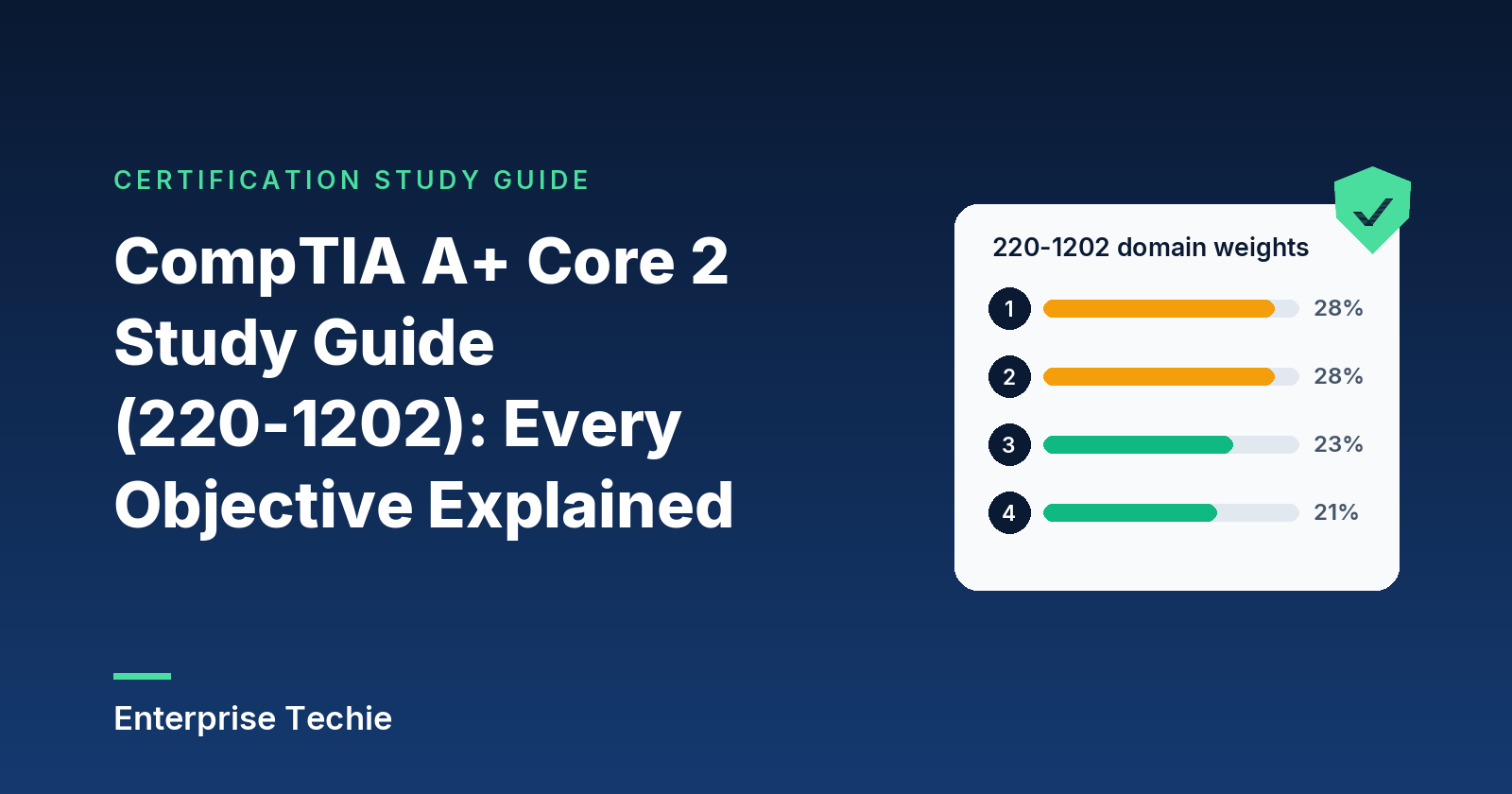
| Domain | Weight | Objectives | “Given a scenario” objectives |
|---|---|---|---|
| Domain 1: Operating Systems | 28% | 11 | 7 |
| Domain 2: Security | 28% | 11 | 6 |
| Domain 3: Software Troubleshooting | 23% | 4 | 4 |
| Domain 4: Operational Procedures | 21% | 10 | 6 |
| Total | 100% | 36 | 23 |
The weights are CompTIA’s; the objective counts are taken from the objectives document. Each domain below has one subsection per objective in plain English, ending with an exam tip on two ideas that are easy to confuse. Objectives that start with “Given a scenario” expect you to apply the material, so practice them hands-on. For the bare objectives list, see the A+ objectives page; to test yourself, try the free A+ practice questions.
Domain 1: Operating Systems (28%)
Tied for the largest domain: eleven objectives, seven of them scenarios, covering Windows in depth and the working basics of macOS and Linux.
1.1 Operating system types, file systems and life cycles
Know the desktop systems (Windows, Linux, macOS, ChromeOS), the mobile ones (iOS, iPadOS, Android) and their file systems.
| File system | Home | What to remember |
|---|---|---|
| NTFS | Windows | Access control lists, file-level encryption, compression, quotas, journaling |
| ReFS | Windows Server storage | Checksums and online repair; not bootable, no disk quotas, not for removable media |
| FAT32 | Removable drives | Largest file 4 GiB; no access control lists or encryption |
| exFAT | Larger flash drives | No 4 GiB file limit, but no access control lists |
| ext4 | Linux | An advanced level of ext3, built for large 64-bit file systems |
| XFS | Linux | High-performance journaling file system that began on SGI’s IRIX |
| APFS | macOS | Startup and data volumes, optimized for flash and SSD storage |
For drives shared with Windows, Apple suggests MS-DOS (FAT) for volumes of 32 GB or less and ExFAT above 32 GB.
Vendor life cycles. After end of life (EOL), security updates stop. Windows 10 reached end of support on October 14, 2025, and Google’s Auto Update policy gives ChromeOS devices 10 years of updates from the platform release date. Hardware can block upgrades too (see 1.3).
Exam tip: FAT32 and exFAT both move between systems, but only FAT32 stops at 4 GiB per file. A large video that won’t copy to a USB stick points to FAT32.
1.2 Installing and upgrading an operating system (scenario)
Boot methods include USB, flash or SSD, external and internal drives, the internet and the network, where PXE boots a client into Windows PE. Multiboot puts several operating systems on one machine.
Installation types. A clean install starts fresh; an upgrade keeps files, settings and apps. Image deployment copies one prepared image to many machines. Zero-touch deployment such as Windows Autopilot transforms the OEM-optimized Windows already on a new device instead of reimaging it. A repair installation reinstalls Windows through Windows Update while keeping files, apps and settings, per Microsoft’s recovery options. Keep third-party drivers handy.
| MBR | GPT | |
|---|---|---|
| Partitions | Four table entries; more need an extended partition | Windows allows 128 |
| Resilience | One table | Primary and backup tables with CRC32 checks |
| Windows boot on UEFI | Not supported | Required |
| Older tools | Native | A protective MBR shows them one partition |
Sources: Microsoft’s Windows and GPT FAQ, which also notes that Windows Setup offers only NTFS. Before an upgrade, back up files and user preferences and confirm app, driver and hardware support. Feature updates arrive once a year for Windows 11, each supported for 24 months on Home and Pro and 36 months on Enterprise.
Exam tip: MBR and GPT are partition styles; NTFS and FAT32 are file systems. A UEFI machine booting Windows needs a GPT boot disk, whatever file system sits on it.
1.3 Windows editions compared
In scope: Windows 10 Home, Pro, Pro for Workstations and Enterprise, and Windows 11 Home, Pro and Enterprise.
| Feature | Home | Pro | Enterprise |
|---|---|---|---|
| Maximum RAM, 64-bit | 128 GB | 2 TB | 6 TB |
| BitLocker enablement | No; device encryption on supported hardware | Yes | Yes |
| BitLocker To Go | No | Yes | Yes |
| Microsoft Entra join | No | Yes | Yes |
| Support per Windows 11 feature update | 24 months | 24 months | 36 months |
Pro for Workstations also supports 6 TB. To accept Remote Desktop connections a PC must run Pro, while the connecting device can run any edition. N editions leave out media technologies and Windows Media Player, which the Media Feature Pack restores. Windows 11 Home setup needs internet and a Microsoft account.
Domain vs. workgroup. In a workgroup each PC keeps its own accounts. In a domain, Active Directory holds them centrally, and Group Policy applies by site, domain or organizational unit (gpresult). An in-place upgrade keeps data and apps; a clean install doesn’t.
| Windows 11 minimum | Requirement |
|---|---|
| Processor | 1 GHz or faster, two or more cores, compatible 64-bit |
| Memory and storage | 4 GB RAM, 64 GB storage |
| Firmware | UEFI, Secure Boot capable |
| TPM | Version 2.0 |
| Graphics | DirectX 12 with a WDDM 2.0 driver |
Exam tip: device encryption and BitLocker are related but not the same. Home can get automatic device encryption on supported hardware; BitLocker enablement starts at Pro.
1.4 Windows tools and MMC snap-ins (scenario)
A snap-in is a tool hosted in the Microsoft Management Console (MMC), a common framework for admin tools. Know each tool and the command that opens it.
| Tool | Command | Use it to |
|---|---|---|
| Task Manager | Not a snap-in | Processes, performance, users, services, startup apps |
| Event Viewer | eventvwr.msc | Read logs, such as chkdsk results |
| Disk Management | diskmgmt.msc | Manage partitions and volumes |
| Task Scheduler | taskschd.msc | Run tasks automatically when triggers occur |
| Device Manager | devmgmt.msc | Check device status and driver details |
| Certificate Manager | certmgr.msc | View the current user’s certificates |
| Local Users and Groups | lusrmgr.msc | Manage local accounts and groups |
| Performance Monitor | perfmon.msc | Track performance; perfmon /res opens its Resource View |
| Group Policy Editor | gpedit.msc | Edit local policy |
| System Information | msinfo32.exe | Read system and version details |
| Resource Monitor | resmon.exe | Monitor resource use |
| System Configuration | msconfig.exe | Set up a clean boot |
| Disk Cleanup | cleanmgr.exe | Clear temporary files and the Recycle Bin |
| Disk Defragment | dfrgui.exe | Consolidate fragmented files |
| Registry Editor | regedit.exe | Edit the registry; File > Export backs up a key |
Exam tip: System Configuration’s Startup tab only links to Task Manager, which is where startup apps are disabled. Services are handled on System Configuration’s Services tab.
1.5 Windows command-line tools (scenario)
All are in Microsoft’s Windows commands reference; /? shows help for each.
| Command | What it does | Switches to know |
|---|---|---|
| cd, dir | Change directory; list contents | cd .. goes up; dir /a shows hidden files |
| ipconfig | Shows TCP/IP settings | /all, /release, /renew, /flushdns |
| ping | ICMP echo test, four requests by default | /t until stopped, /n count |
| netstat | Shows connections and listening ports | -a, -n, -o (process ID), -b |
| nslookup | Queries DNS to diagnose name resolution | Interactive or one-line |
| net use | Connects to shared resources | net use z: \\server\share, /persistent:yes, /delete |
| tracert | Traces the route hop by hop, up to 30 hops by default | /d skips name lookups |
| pathping | Route trace plus per-router loss statistics | /n skips name lookups |
| chkdsk | Checks a volume for errors | /f fixes, /r also finds bad sectors |
| format | Creates a new file system on a drive | /fs: (FAT, FAT32, NTFS, exFAT, ReFS, UDF), /q quick |
| diskpart | Manages disks, partitions and volumes | list, select, then act on the object in focus |
| md, rmdir | Create a directory; delete one | rmdir /s deletes a tree, /q skips the prompt |
| robocopy | Copies file data | /e, /mir (mirror), /z (restartable) |
| hostname, winver | Show the host name; show the Windows version | None |
| net user | Manages user accounts | /add, /domain |
| whoami | Shows the user, groups and privileges | /groups, /priv, /all |
| gpupdate, gpresult | Update Group Policy; show the Resultant Set of Policy | gpupdate /force; gpresult /r |
| sfc | Repairs protected system files | /scannow |
Worth knowing: chkdsk without switches only reports, and it must lock the volume to fix anything, so a system drive is checked at restart; /r includes /f. robocopy /mir is /e plus /purge, which deletes destination files missing from the source. gpupdate /force reapplies every setting, not only changed ones.
Exam tip: chkdsk repairs a volume’s file system; sfc repairs Windows’ own protected files. Disk errors point to chkdsk, damaged Windows components to sfc.
1.6 Windows settings and Control Panel (scenario)
Control Panel holds the classic applets, from Internet Options and Programs and Features to Windows Defender Firewall and the admin tools folder, which Windows 11 calls Windows Tools. The Settings app covers similar ground in categories such as System, Apps, Accounts, Privacy, and Update and Security. Scenario questions describe a goal; know where its switch lives. File Explorer options show hidden files and file extensions.
| Power state | What happens |
|---|---|
| Sleep | Low power; wakes on keyboard, network or USB input |
| Hibernate | Memory is written to a hibernation file; the PC appears off |
| Hybrid sleep | Sleep plus a hibernation file in case power fails |
| Fast startup | The user is signed out before the hibernation file is written, so the file is smaller |
Source: Microsoft’s system power states. USB selective suspend lets the hub driver suspend one port without affecting the others, saving battery.
Exam tip: fast startup and hibernate both write a hibernation file, but fast startup signs the user out first, so the user’s session isn’t brought back.
1.7 Windows networking on a client (scenario)
Shared printers, file servers and mapped drives use paths like \\server\share, opened in File Explorer or mapped with net use. A static setup needs an IP address, subnet mask, gateway and DNS servers; Microsoft recommends DHCP instead. With no address available, a host can configure a link-local address in 169.254.0.0/16 (RFC 3927); Microsoft calls these APIPA addresses.
On a public network the PC is hidden and can’t share files or printers; on a private network it is discoverable and can. Microsoft recommends public. A metered connection limits background data, so some updates won’t install automatically; cellular is metered by default. Also in scope: VPN, wired, wireless and cellular (WWAN) connections, proxy settings and firewall exceptions.
Exam tip: a 169.254.x.x address means the PC got no address from DHCP. Check the cable, the Wi-Fi connection or the DHCP server before blaming DNS.
1.8 macOS features and tools
Apps come from the App Store or as a downloaded disk image (.dmg) or installer package (.pkg); the app itself (.app) sits in /Applications. To remove one, run its uninstaller if it has one, or drag it to the Trash (Apple). Other system folders to recognize: /Users, /Library, /System and each user’s own Library.
| Tool or feature | What it does |
|---|---|
| System Settings | Formerly System Preferences: displays, networks, printers, privacy and more |
| Time Machine | Hourly backups for 24 hours, daily for a month, then weekly |
| Disk Utility | First Aid checks and repairs volumes and disks |
| FileVault | Requires the login password before data is decrypted |
| Force Quit | Option, Command and Esc together |
| Mission Control | Shows all open windows; creates extra desktops called spaces |
| Keychain Access | Manages certificates; passwords live in the Passwords app |
| Spotlight | Command-Space bar to search |
| Continuity | Cross-device features such as AirDrop and Handoff |
Also know Terminal, Finder, the Dock, gestures and iCloud. Apple now says Apple Account for Apple ID. Best practices: backups, antivirus, updates, and Rapid Security Response, which Apple now documents as Background Security Improvements: security fixes delivered without a full update, marked with a letter such as (a).
Exam tip: Force Quit on a Mac is Option-Command-Esc. Mission Control shows open windows; Spotlight finds apps and files.
1.9 Linux desktop commands and files
Descriptions follow Ubuntu’s manual pages, which man shows for any command.
| Commands | What they do |
|---|---|
| ls, pwd, mv, cp, rm | List; print working directory; move or rename; copy; remove |
| chmod, chown | Change permissions; change owner and group |
| grep, find | Print lines matching a pattern; search a directory tree for files |
| fsck, mount | Check and repair a file system; mount one |
| su, sudo | Switch user; run one command as another user |
| apt, dnf | Ubuntu’s package tool; the package manager for RPM-based distributions |
| ip, ping, curl, dig, traceroute | Interfaces and routes; ICMP echo; transfer a URL; DNS lookup; route trace |
| man, cat, top, ps, du, df | Manuals; print files; live processes; process snapshot; space used; free space |
| nano | A terminal text editor |
chmod numbers add read (4), write (2) and execute (1) for owner, group and others: chmod 754 gives the owner 7 (all three), the group 5 (read, execute) and others 4 (read).
| File | Holds |
|---|---|
| /etc/passwd | One line per account, seven fields |
| /etc/shadow | Password information; not readable by regular users |
| /etc/hosts | A static table of host names |
| /etc/fstab | File systems the system can mount |
| /etc/resolv.conf | Resolver settings, up to three nameservers |
At boot, firmware hands off to a bootloader such as GRUB, which loads the kernel; systemd then runs as PID 1 and starts services. Root is the superuser.
Exam tip: su switches you to another user, root by default, until you exit; sudo runs a single command with another user’s rights.
1.10 Installing applications to requirements (scenario)
Check requirements against the machine: 32-bit or 64-bit, dedicated or integrated graphics, video RAM, RAM, CPU, storage, hardware tokens and OS compatibility. On 64-bit Windows, WOW64 runs 32-bit apps. Apps arrive on physical media or a mountable ISO, as a download or in an image. Then weigh the impact on the device, network, operations and business.
Exam tip: 64-bit Windows runs 32-bit apps, but a 32-bit copy of Windows 10 caps RAM at 4 GB, worth checking when a demanding app struggles.
1.11 Cloud productivity tools (scenario)
Cloud suites bundle email, storage and collaboration tools. OneDrive Files On-Demand shows cloud files as online-only, using no local space until opened. Microsoft Entra Connect synchronizes on-premises identities to Microsoft Entra ID, for example with password hash synchronization; Microsoft says Cloud Sync replaces it. Licenses are assigned per user in the Microsoft 365 admin center.
Exam tip: sync and backup do different jobs. An online-only file needs a connection, and a deletion syncs as fast as an edit.
Domain 2: Security (28%)
Equal to Domain 1 in weight: eleven objectives, six of them scenarios, from guards and badges to malware cleanup and browser settings.
2.1 Security measures and what they do
Physical security keeps people and vehicles out: bollards, access control vestibules, badge readers, video surveillance, alarms, motion sensors, door and equipment locks, guards, fences, lighting and magnetometers. Physical access uses key fobs, smart cards, mobile digital keys, keys and biometrics (retina, fingerprint and palm scanners, facial and voice recognition).
| Logical control | Plain meaning |
|---|---|
| Least privilege | Only the access a task needs |
| Zero Trust | Decide each access request on its own, treating the network as compromised |
| Access control list | Who may do what to a resource |
| MFA | Two or more different factors: something you know, have or are |
| TOTP | A code from a shared secret and the time, in 30-second steps by default |
| SAML | XML-based messages for exchanging security information |
| SSO | One account and its authenticators give access to many applications |
| Just-in-time access, PAM | Privileged access only when needed, for a limited time |
| DLP | Policies that keep sensitive data from being shared where it shouldn’t be |
MFA can arrive by email, hardware token, authenticator app, SMS, voice call or one-time passcode. MDM, identity and access management (IAM) and directory services round out the list.
Exam tip: two passwords are still one factor. MFA needs factors from different categories, such as a password plus a fingerprint.
2.2 Windows security settings (scenario)
Microsoft Defender Antivirus ships with Windows 10 and 11 and can run in passive mode beside another antivirus. Know how to turn it and the firewall on and off, update definitions, and allow or block ports and apps.
Accounts. A local account lives on the PC; a Microsoft account can sync settings and app data across devices. The built-in Guest account has limited access and is disabled by default. Power Users is a built-in group, empty by default, whose members can install programs and create local users. Windows Hello signs users in with biometrics or a PIN instead of a password; Windows Hello for Business counts as two-factor.
Permissions. NTFS permissions apply locally and remotely; share permissions apply only to network shares. When both apply, the more restrictive wins (Microsoft). User Account Control prompts when a task needs administrator rights, so people can work as standard users; “Run as administrator” starts one program with full rights.
| Encryption | Protects | Note |
|---|---|---|
| BitLocker | Entire volumes | Aimed at lost, stolen or badly decommissioned devices |
| BitLocker To Go | USB flash drives | Pro and higher |
| EFS | Individual files on NTFS | Uses a public-key system |
Active Directory tasks: join a domain, assign log-in scripts and home folders, move objects between organizational units, apply Group Policy, choose security groups, and set up Folder Redirection, which can point Documents at a network location so files follow the user.
Exam tip: BitLocker encrypts the whole volume; EFS encrypts chosen files. A stolen laptop calls for BitLocker.
2.3 Wireless security protocols and authentication
Apple’s recommended router settings rank the options. WPA3 Personal is the newest and most secure, and works with all devices that support Wi-Fi 6 (802.11ax) and some older ones. WPA2/WPA3 Transitional lets older devices use WPA2 Personal (AES), and WPA2 with AES is the fallback. Avoid anything with TKIP in its name, WEP and plain WPA.
| Protocol | Port | Key traits |
|---|---|---|
| RADIUS | UDP 1812 | Shared secret never crosses the network; user passwords sent encrypted |
| TACACS+ | TCP 49 | Separates authentication, authorization and accounting; mainly device administration; obfuscates packet bodies |
| Kerberos | UDP or TCP 88 | A key distribution center issues tickets that clients present to services |
Exam tip: RADIUS uses UDP and carries authentication and authorization together; TACACS+ uses TCP and keeps the three A’s separate, which suits device administration.
2.4 Malware types and how to detect, remove and prevent them
| Malware | Defining behavior |
|---|---|
| Trojan | Looks useful but hides a malicious function |
| Rootkit | Tools that hide an attacker’s activity after gaining root-level access |
| Virus | Spreads by modifying other programs to include a copy of itself |
| Boot sector virus | Runs from boot code before the operating system loads |
| Spyware | Installed secretly to collect information |
| Stalkerware | Spyware someone puts on another person’s phone without their knowledge |
| Ransomware | Encrypts files so they can’t be used, then demands payment |
| Keylogger | Records what a user types |
| Cryptominer | Secretly mines cryptocurrency on the victim’s hardware |
| Fileless | Avoids files, for example living only in memory |
| Adware, PUP | Slows a machine, shows unexpected ads, or installs other unwanted software |
Tools and methods: antivirus and anti-malware, software firewalls, email security gateways, anti-phishing training, the recovery console (now Windows RE), and reinstalling the OS as a last resort. Above the desktop scanner sit three services. EDR gives analysts near real-time attack detections on endpoints. XDR coordinates detection and response across endpoints, identities, email and applications. MDR is a managed service whose analysts triage and investigate incidents around the clock.
Exam tip: EDR and XDR are technology; MDR is people. A company with no security staff points to MDR.
2.5 Social engineering, threats and vulnerabilities
Phishing tries to trick people into handing over sensitive data. CISA calls the voice version vishing and the text version smishing; QR code phishing hides the link in a QR code. Microsoft describes spear phishing as content tailored to specific recipients and whaling as phishing aimed at executives. In person, watch for shoulder surfing, tailgating, impersonation and dumpster diving.
| Threat | What it is |
|---|---|
| DoS, DDoS | Denial of service; distributed when numerous hosts take part |
| Evil twin | A rogue access point made to look like part of a real network, so connected clients’ traffic can be read and changed |
| Zero-day | Exploits a previously unknown vulnerability |
| Spoofing | Posing as an authorized user |
| On-path | The attacker sits between two communicating parties |
| Brute force | Tries many password combinations |
| Dictionary | Guesses common words and breached passwords |
| Insider threat | Authorized access used, knowingly or not, to do harm |
| SQL injection | Targets sites that pass unchecked input to a database |
| XSS | Injects malicious code into a benign website |
| BEC | Forged trusted senders trick staff into payments or disclosure |
| Supply chain | Infects legitimate software through its code, build or update process |
Vulnerabilities in the objectives: non-compliant, unpatched and unprotected systems (missing antivirus or firewall), EOL operating systems, and bring your own device (BYOD).
Exam tip: spear phishing targets specific people; whaling is spear phishing aimed at executives. BEC is about a forged instruction moving money or data.
2.6 Removing malware from a SOHO PC (scenario)
CompTIA lists the cleanup as a numbered sequence, and order matters. In plain terms:
- Confirm the symptoms really are malware.
- Isolate the machine from the network.
- On Windows Home, turn off System Restore so restore points saved while infected aren’t reused.
- Clean it: update the anti-malware tools, then scan and remove, in safe mode or a preinstallation environment if needed. Reimage or reinstall if it won’t clear.
- Schedule scans and install updates.
- On Windows Home, turn System Restore back on and create a restore point.
- Teach the user how to avoid the next infection.
Safe mode starts Windows with a limited set of files and drivers. The Windows Recovery Environment is built on Windows PE. System Protection, which creates restore points, isn’t on by default, so turning it back on matters.
Scenario questions often hand you a half-finished cleanup and ask what comes next, so learn the order as well as the steps. A machine that is still connected can spread the infection or keep talking to the attacker, which is why isolation comes before any scanning.
Exam tip: isolate before cleaning, and turn System Restore off before cleaning and on after. Educating the user is the final step.
2.7 Hardening a workstation (scenario)
Encrypt data at rest and set BIOS/UEFI passwords. The objectives judge passwords on length, character types, uniqueness, complexity and expiration; NIST SP 800-63B leans on length and screening:
- At least 15 characters when a password is used alone, and 8 when it is one factor of MFA; allow at least 64.
- No other composition rules, and no scheduled changes, but a forced change after evidence of compromise.
- Screen new passwords against a blocklist of common and breached values, and limit consecutive failed attempts to no more than 100.
End users should lock screens, log off, secure laptops, protect PII and passwords, and use a password manager. Accounts: restrict permissions and log-in times, keep guest disabled, lock out after failed attempts, set timeouts and expiration dates. Change the default administrator account and password, disable AutoRun, and turn off unused services.
Exam tip: the objectives list complexity and expiration, while NIST now advises against forced composition and scheduled changes. Know both and read what the question asks.
2.8 Securing mobile devices (scenario)
Start with device encryption and a screen lock (face, PIN, fingerprint, pattern or swipe). Apple’s Data Protection builds on hardware encryption and works file by file. Configuration profiles carry settings; Apple’s deployment guide notes the legacy form is an XML .mobileconfig file, usually created by the device management service.
Keep the OS and apps patched. Endpoint software adds antivirus, anti-malware and content filtering; Android’s Google Play Protect checks apps, warns, and can remove harmful ones. For lost devices, use locator apps and remote wipe, such as Apple’s Find Devices and Google’s find, secure or erase. Add remote backup, failed log-in limits, and policies for MDM and for BYOD versus corporate-owned devices.
Exam tip: a configuration profile is the package of settings; MDM is the service that delivers and enforces it.
2.9 Data destruction and disposal
NIST’s SP 800-88 Rev. 2 (September 2025) sorts sanitization into three methods:
| Method | Result | Reusable | Examples |
|---|---|---|---|
| Clear | Overwrites data through normal read and write commands | Yes | Erasing and wiping |
| Purge | Recovery infeasible even with lab techniques | Potentially | Sanitize commands, cryptographic erase, degaussing magnetic media |
| Destroy | Recovery infeasible and media unusable | No | Shredding, incinerating, disintegrating, pulverizing |
Degaussing works only on magnetic media, not SSDs, and NIST doesn’t count it as a destroy technique. A quick format deletes only the file table and root directory, while format /p zeroes every sector. Drilling physically damages the platters. Outsourced vendors should supply a certificate of destruction or recycling; NIST includes a sample certificate of sanitization. Regulatory and environmental rules set the rest.
Exam tip: a quick format leaves data recoverable. To reuse a drive, wipe it; to retire it, destroy it.
2.10 Securing SOHO networks (scenario)
CISA’s home network guidance says to change default passwords, which may be published online or printed on the device; update firmware; disable UPnP unless needed, since it can let attackers control devices remotely; and turn off remote management. Apple recommends WPA3 Personal or WPA2/WPA3 Transitional, automatic firmware updates, and a unique network name. Apple also advises against a hidden SSID: hiding it doesn’t secure the network and can expose information about it.
The rest of the objective: IP filtering and content filtering, a physically secure spot for the router, a screened subnet for devices that must be reachable from the internet, guest access kept apart from the main network, disabling unused ports, and port forwarding or mapping only for services that need it. Every open forward is a path in from the internet, so review them along with the firmware.
Exam tip: Apple recommends leaving SSID hiding and MAC address filtering off and not relying on either. Use WPA3, or WPA2 with AES.
2.11 Browser security settings (scenario)
Install browsers and extensions from trusted sources and compare the file’s hash with the publisher’s: Get-FileHash uses SHA256 by default, and matching hashes mean identical content. Keep the browser patched. Settings to know: password managers, valid certificates, pop-up blockers, clearing data and cache, private browsing (InPrivate doesn’t save history or cookies), sync, ad blockers, proxy, and secure DNS, which sends DNS queries over HTTPS (RFC 8484). Plug-ins, extensions and features can each be turned on or off.
Exam tip: clearing the cache removes stored page copies; clearing browsing data can also remove history and cookies. Match the fix to the symptom.
Domain 3: Software Troubleshooting (23%)
Only four objectives, but all four are scenarios and together they carry almost a quarter of the exam. Expect a symptom and a choice of next steps, often with several answers that would eventually work. Work the same way throughout: gather information, try the least disruptive fix first, change one thing at a time, and document what you did.
3.1 Troubleshooting Windows (scenario)
Blue screen of death (BSOD). Windows stops when a condition threatens safe operation. Microsoft’s stop error guide attributes 70 percent of the crashes it analyzed to third-party driver code, 10 percent to hardware, 5 percent to Microsoft code and 15 percent to unknown causes. So start with the stop code in the event log, then look at recently added or updated drivers and hardware.
Boot issues and “no OS found.” First check the boot order and any USB drive left plugged in. Then check the firmware mode against the disk: Windows can’t boot in UEFI mode from an MBR disk, per the GPT FAQ, so a firmware setting changed from legacy to UEFI can stop a working MBR drive from booting. Microsoft’s boot troubleshooting guide then moves through Startup Repair, which fixes many common startup issues automatically; bootrec /fixmbr and /fixboot to repair boot code; and bootrec /rebuildbcd for boot configuration errors. Windows RE also opens on its own after two consecutive failed attempts to start Windows, or two consecutive unexpected shutdowns within two minutes of boot completing.
| Symptom | First places to look |
|---|---|
| Degraded performance | Task Manager and Resource Monitor for the busy process; startup apps; a clean boot |
| Frequent shutdowns | Event Viewer’s System log; cooling and power hardware |
| Services not starting | The error in Event Viewer; services it depends on; the account it runs as |
| Applications crashing | The Application log; updating, repairing or reinstalling the app |
| Low memory warnings | Which process holds memory; installed versus usable RAM, since 32-bit Windows 10 stops at 4 GB |
| USB controller resource warnings | Devices sharing one USB controller; move some to another port or controller |
| System instability | sfc /scannow, chkdsk, pending updates, a restore point |
| Slow profile load | Large or roaming profiles loaded from a file share |
| Time drift | The Windows Time service; w32tm /resync |
For degraded performance with no obvious culprit, Microsoft’s clean boot narrows it down: in System Configuration, hide all Microsoft services and disable the rest, then disable startup apps in Task Manager and restart. If the problem disappears, a third-party service or startup app is the cause, and you turn them back on in groups to find it. For instability, sfc /scannow checks Windows’ protected files and chkdsk checks the file system; run both before reaching for a reinstall.
Two more notes on the table. Roaming User Profiles store the profile on a file share, so a slow network or a bloated profile shows up as a slow sign-in. And w32tm /resync tells the computer to resynchronize its clock as soon as possible; the Windows Time service uses NTP on UDP port 123, so a blocked port can cause drift. Clock errors matter beyond the taskbar: Kerberos requires every host’s clock to be loosely synchronized with the others.
Recovery options run from gentle to drastic in Microsoft’s recovery guide:
| Option | What it changes | What it keeps |
|---|---|---|
| System Restore | Rolls back system files and settings | Personal files |
| Uninstall a Windows update | Removes a recent update | Everything else |
| Reinstall Windows using Windows Update | Reinstalls the current version | Files, apps and settings |
| Reset this PC | Reinstalls Windows from scratch | Personal files if chosen, or nothing |
Exam tip: try the least disruptive fix that matches the symptom: System Restore before a repair reinstall, and a repair reinstall before Reset this PC.
3.2 Troubleshooting mobile OS and app problems (scenario)
Apps that won’t launch, close or behave. On iPhone, Apple advises closing an app only when it is unresponsive, then opening it again. On Android, Google’s app troubleshooting steps start with updating the app and then escalate:
| Android step | What it does | Cost |
|---|---|---|
| Force stop | Shuts the app down | None |
| Clear cache | Removes temporary files; a short-term fix, since the cache builds up again | Low |
| Clear storage | Erases everything the app has saved | High: the app starts like new |
Apps or the OS that won’t install or update. Start with the usual causes: space, compatibility and connectivity. Check free storage, the OS version the app requires, and the network, then restart the device; Google’s basic download troubleshooting begins with a restart and a storage check. A device that no longer receives OS updates has reached its vendor’s end of support, which ties back to objective 1.1.
| Symptom | Common checks |
|---|---|
| Slow to respond | Free storage, apps running in the background, a restart |
| Battery life issues | Which apps use the most battery; screen brightness; background activity |
| Random reboots | Pending updates, a recently installed app, overheating |
| Bluetooth problems | Turn Bluetooth off and on; forget and re-pair the device |
| Wi-Fi problems | Forget and rejoin the network; check airplane mode |
| NFC problems | Confirm NFC is turned on and the phone is close to the reader |
| Screen doesn’t autorotate | Whether rotation is locked; whether the app supports rotation |
Work from the cheapest step to the most expensive: settings and restarts first, then app-level fixes, then a factory reset only after the data is backed up. If one app misbehaves, fix the app; if many do, look at the OS, storage or network instead.
On iPhone and iPad, Apple’s app troubleshooting steps are similar: close and reopen the app, restart the device, update the app (or the OS if no app update exists), then delete and redownload it, which can lose data stored in the app.
Exam tip: clearing the cache is safe; clearing storage wipes the app’s data and sign-ins. Try the cache first.
3.3 Troubleshooting mobile security problems (scenario)
Where the risk comes from. Apps from unofficial stores skip the store’s checks, although Google Play Protect also scans apps installed from other sources. Developer mode on Android, a set of settings meant for app developers, is turned on by tapping Build number seven times (Android developer documentation). Rooting (Android) and jailbreaking (iOS) remove built-in protections; Apple’s page on unauthorized modification of iOS warns of security vulnerabilities, instability and shorter battery life. Malicious apps include application spoofing, where a fake imitates a trusted app.
| Symptom | What it can mean |
|---|---|
| High network traffic or a data-usage limit warning | An app sending data in the background |
| Degraded response time | Something using CPU or memory out of sight |
| Limited or no internet connectivity | Altered network settings or a malicious profile |
| High number of ads | Adware or a PUP |
| Fake security warnings | Scareware pushing a “fix” to download |
| Unexpected application behavior | A tampered or spoofed app |
| Leaked personal files or data | Spyware or a compromised account |
Several symptoms overlap with ordinary problems: high data use can be a video app, and slow response can be a full disk. The security angle is the pattern, such as a symptom that starts right after an app was installed from outside the official store.
The response mirrors objective 2.8. Remove the suspect app and any configuration profile you didn’t install on purpose. Run Play Protect or an anti-malware scan. Update the OS. Change passwords from a clean device. If the problem persists, back up the data you need and restore or reset the device. On a managed device, report it so the organization can use MDM to lock or wipe it.
Exam tip: jailbreaking is the iOS term and rooting the Android term, but the result is the same: protections are bypassed, and the device should be treated as untrusted.
3.4 Troubleshooting PC security problems (scenario)
| Symptom | Likely meaning | Next step |
|---|---|---|
| Can’t reach the network | Altered network, proxy or DNS settings | Compare ipconfig /all and the proxy settings with a known-good PC |
| Desktop alerts and false antivirus warnings | Scareware or a fake security product | Close without clicking; scan with the installed antivirus |
| Missing or renamed files, files that won’t open | Possible ransomware | Isolate the PC immediately (2.6) |
| Unwanted OS notifications | Adware or a malicious browser notification permission | Remove the app or revoke the permission |
| OS update failures | Malware blocking updates, or ordinary update corruption | Scan first, then repair Windows Update |
Ransomware, in CISA’s description, encrypts files so that they and the systems relying on them become unusable, then demands payment. That makes “files suddenly won’t open” one of the most urgent symptoms on the list.
Browser symptoms are random or frequent pop-ups, certificate warnings, redirection to sites the user didn’t request, and a browser that has slowed down. Check installed extensions, the default search engine, proxy and DNS settings, and the hosts file. ipconfig /displaydns lists the DNS client cache, including entries preloaded from the local Hosts file, so a planted entry that sends a bank’s name to the wrong address shows up there. A browser that slows down for no clear reason deserves the same scrutiny: Microsoft notes that some coin-mining attacks run scripts in the page while users browse, borrowing the PC’s processing power. A certificate warning on a site that normally works can mean the connection is being intercepted, the on-path attack from 2.5, so don’t click through it on a network you don’t trust.
Once malware looks likely, switch to the 2.6 sequence: confirm, isolate, clean, then educate.
Exam tip: a false antivirus alert that asks for a download or payment is itself the symptom. Close it without clicking and scan with the installed security software.
Domain 4: Operational Procedures (21%)
The working habits of a support technician: ten objectives, six of them scenarios, including scripting, remote access and AI.
4.1 Documentation and support systems (scenario)
Tickets record the user, the device, a description, category, severity and escalation level, plus clear notes on the issue, progress and resolution. Asset management covers inventory lists, asset tags, the procurement life cycle, warranty and licensing, and assigned users. A configuration management database (CMDB) holds representations of assets and services and their relationships, stored as configuration items (CIs).
Documents include incident reports, standard operating procedures (such as a custom software install procedure), onboarding and off-boarding checklists, knowledge base articles and service-level agreements. An SLA defines the provider’s responsibilities and sets customer expectations; it can be internal or with a third party.
Exam tip: an incident report records what happened; a knowledge base article records how to fix it next time.
4.2 Change management (scenario)
A change request states the purpose, scope, change type, date and time (respecting change freezes and maintenance windows), affected systems and impact, and a risk analysis with a risk level. Then come change board approval, implementation, peer review and end-user acceptance. Behind it sit a rollback plan, a backup plan, sandbox testing and named responsible staff.
| Change type | Meaning (ServiceNow) |
|---|---|
| Standard | Pre-authorized, low risk and relatively common |
| Normal | Neither standard nor emergency; gets full review |
| Emergency | High priority, done immediately to resolve a major incident or apply a security patch |
Exam tip: a rollback plan undoes the change; a backup plan protects the data if undoing isn’t enough.
4.3 Backup and recovery (scenario)
| Backup type | What it copies | A restore needs |
|---|---|---|
| Full | All selected data | That backup |
| Incremental | New or changed data since the last backup of any kind | The last full plus every incremental since |
| Differential | New or changed data since the last full | The last full plus the latest differential |
| Synthetic full | A new full built from existing backups, without reading the client | That backup |
Definitions follow Commvault’s backup options. Restore in place, overwriting the original, or to an alternative location when you aren’t sure the backup is the version you want. Test restores on a schedule. Keep copies onsite and offsite. In Commvault’s grandfather-father-son scheme, weekly backups are sons, monthly ones fathers and yearly ones grandfathers. CISA’s 3-2-1 rule: 3 copies of important files, on 2 different media types, with 1 offsite.
Exam tip: incrementals are fastest to make and slowest to restore; differentials grow until the next full but restore in two steps.
4.4 Safety procedures (scenario)
Dell’s service precautions call a grounding wrist strap, mat or table the best defense against electrostatic discharge (ESD), say to put removed parts straight into an anti-static bag, and say to disconnect all cables, cords and batteries before opening a computer. Ground equipment properly and manage cables.
For lifting, NIOSH-provided guidance says to keep your neck and back aligned, bend your knees, bring the load close, and lead with your foot instead of twisting. OSHA defines a Class C fire as one involving energized electrical equipment, needing a nonconductive extinguishing agent. Wear safety goggles and an air filter mask where needed, and follow government regulations.
Exam tip: an ESD strap protects components from you; disconnecting power protects you from the components.
4.5 Environmental impacts and controls
The objectives say MSDS; OSHA’s Hazard Communication standard now calls for safety data sheets (SDS) in a 16-section format, so check the sheet before handling or disposing of toner and other chemicals. The EPA says lithium-ion batteries don’t belong in household garbage or recycling bins: take them to a battery recycler or hazardous waste collection point, with terminals taped. Watch temperature, humidity and ventilation, place equipment where air moves, and clear dust with compressed air or a suitable vacuum.
For surges, brownouts and blackouts, a surge protector guards against voltage spikes or dips, and an uninterruptible power supply has a battery that keeps devices running for at least a short time.
Exam tip: a surge suppressor does nothing in a blackout. If the scenario mentions outages, the answer is a UPS.
4.6 Prohibited content, privacy, licensing and policy
Incident response. Inform management, and law enforcement where necessary. Copy the drive to preserve data integrity, document everything, and keep a chain of custody, the record of who handled the evidence, when and why. Collect the most volatile evidence first; RFC 3227 starts with registers and cache, then memory and process tables, temporary file systems, disk, remote logs, physical configuration, and archival media last.
Licensing covers DRM, the EULA, valid licenses, perpetual versus subscription, personal versus corporate use, and open source. The Open Source Definition requires more than access to source code, including free redistribution.
| Regulated data | Governed or defined by |
|---|---|
| Credit card payment information | PCI DSS, a baseline for protecting payment account data |
| PII | NIST: information that can distinguish or trace an individual’s identity |
| Healthcare data | Protected health information under the HIPAA Privacy Rule |
| Government-issued information | Identity documents and their numbers |
Also know data retention requirements, which set how long records must be kept and when they must be deleted; the acceptable use policy (AUP), which says what users may do with company systems; non-disclosure agreements, one-way (NDA) or mutual (MNDA); and splash screens, the notices shown at sign-in that remind users of the rules before they log in.
Exam tip: order of volatility says what to collect first; chain of custody proves nobody tampered with it afterward.
4.7 Communication and professionalism (scenario)
- Dress to match the setting, formal or business casual. Speak plainly, without jargon, acronyms or slang the customer won’t know.
- Listen without interrupting, ask open-ended questions to narrow the problem, and restate it to confirm. Be culturally sensitive and use proper titles.
- Be on time, or call if late. Keep personal calls, texting and social media out of the visit.
- With a difficult customer, don’t argue, get defensive, dismiss or judge, and don’t share stories about other customers.
- Set a timeline, keep the customer updated, offer repair or replacement options, document the work and follow up later. Treat anything private you see as confidential.
Exam tip: an answer that has you arguing with the customer is almost never the best one. Clarify, restate and set expectations.
4.8 Scripting basics
| Extension | Language | Note |
|---|---|---|
| .bat | Windows batch file | Runs in the Command Prompt (cmd) |
| .ps1 | PowerShell | Execution policies control script use: with no policy set, Windows clients fall back to Restricted (no scripts) and Windows Server to RemoteSigned (local scripts run, downloaded ones must be signed or unblocked), per Microsoft |
| .vbs | VBScript | Deprecated; becomes a feature on demand before removal |
| .sh | Shell script | Bash is an sh-compatible interpreter |
| .js | JavaScript | Windows Script Host runs .js and .vbs files |
| .py | Python | On Windows, python or py runs a script |
Use cases: basic automation, restarting machines, remapping network drives, installing applications, automated backups, gathering data and starting updates. Risks: a script can bring in malware, change system settings by accident, or crash a browser or system by mishandling resources, for example by looping without end. Test in a sandbox first.
Exam tip: under RemoteSigned, a local script runs, but an unsigned script downloaded from the internet doesn’t until it is unblocked, for example with Unblock-File.
4.9 Remote access technologies (scenario)
| Method | Default port | What it is |
|---|---|---|
| RDP | 3389 | Remote Desktop Protocol for Windows desktop sessions |
| VNC | TCP 5900 | Uses the RFB protocol to view and control another computer’s window system |
| SSH | TCP 22 | Secure remote login over an insecure network |
| WinRM | 5985 HTTP, 5986 HTTPS | Windows Remote Management |
| SPICE | Varies | Open-source remote access to virtual machines |
| VPN | Varies | A protected link that uses tunneling and security controls |
| RMM | Varies | Remote monitoring and management software used by service providers and help desks |
Third-party tools add screen sharing, videoconferencing, file transfer and desktop management. For every method: limit who can connect, require strong authentication, keep remote services off the open internet where a VPN can front them, and log sessions. CISA has warned that criminals use phishing to get victims to install legitimate RMM software, so unexpected remote tools are a red flag.
Exam tip: RDP and VNC share a screen; SSH and WinRM give a command line. Running one script on many servers points to SSH or WinRM.
4.10 Basic AI concepts
The objective covers AI built into applications, policy, limitations, and private versus public AI. NIST’s Generative AI Profile (AI 600-1) names the risks precisely:
| Objective term | Meaning |
|---|---|
| Hallucinations | NIST’s confabulation: confidently stated but false content |
| Bias | Amplifying historical, societal and systemic biases |
| Accuracy | Output must be checked before it is relied on |
| Plagiarism, appropriate use | AI eases copying of protected content and plagiarism; policy sets the limits |
| Data privacy | Leakage or unauthorized use or disclosure of personal or sensitive data |
A public AI service is run by someone else, so prompts are handled under that provider’s terms; a private deployment keeps prompts and data inside the organization. For either, ask how the data is secured, where the model’s data comes from, and who can see what users enter.
Exam tip: don’t paste customer data or PII into a public AI tool. That is a privacy problem before it is an accuracy problem.
A study plan
One example of a six-week plan built from the weights. Domains 1 and 2 (28 percent each) get the most time; Domain 3 is all scenarios, so it gets a full hands-on week. Adjust it to your schedule.
| Week | Focus | Hands-on work |
|---|---|---|
| 1 | Objectives 1.1 to 1.6 | Run every command in 1.5; open every tool in 1.4 |
| 2 | 1.7 to 1.11, then 2.1 to 2.3 | A Linux virtual machine for 1.9 |
| 3 | 2.4 to 2.11 | Walk through the 2.6 steps; review a router’s settings |
| 4 | Domain 3 | Break and fix a test VM: boot repair, clean boot, app resets |
| 5 | Domain 4 | Write a small .ps1 and .sh script; open an RDP or SSH session |
| 6 | Review | Timed practice sets; revisit weak objectives |
Twenty-three of the 36 objectives are scenarios, so favor doing over reading. After A+, one path is Network+ and then Security+.
Study-plan builder
Build a A+ Core 2 plan for your exam date
Pick the exam date and the hours a week available. The plan splits the weeks by each domain’s share of the exam, keeps the last week for review and timed practice, and downloads as a calendar file. It runs in the browser, and nothing is saved.
Practice questions
The free A+ practice questions page has 60 questions, 30 for each core with answers and explanations, plus a 10-question quick check scored at the end. No sign-up is needed.
Frequently asked questions
How many questions are on the CompTIA A+ Core 2 exam?
A maximum of 90, a mix of multiple-choice and performance-based questions, with 90 minutes to answer them, according to CompTIA’s 220-1202 exam objectives.
What is the passing score for 220-1202?
700 on a scale of 100 to 900, according to CompTIA’s exam objectives.
Do you have to pass both Core 1 and Core 2 for A+?
Yes. The A+ certification requires both Core 1 (220-1201) and Core 2 (220-1202). CompTIA’s exam page says both exams must come from the same version, with no mixing.
What are the four domains of A+ Core 2?
Operating Systems (28%), Security (28%), Software Troubleshooting (23%) and Operational Procedures (21%). They hold 36 objectives in total.
Is Windows 11 on the A+ Core 2 exam?
Yes. CompTIA’s objectives include Windows versions still in Mainstream Support, up to and including Windows 11, and objectives that name no version can cover Windows 10 and Windows 11.
Which operating systems does A+ Core 2 cover?
Windows, Linux, macOS and ChromeOS on the desktop, and iOS, iPadOS and Android on mobile devices. Windows gets the most detail, with separate objectives for its tools, commands, settings, networking and editions.
When does the 220-1202 exam retire?
CompTIA launched it on March 25, 2025, and lists its retirement as usually three years after launch, estimated 2028. Check CompTIA’s exam page for the confirmed date.
Does A+ Core 2 cover artificial intelligence?
Yes. Objective 4.10 covers basic AI concepts: application integration, policies on appropriate use and plagiarism, limitations such as bias, hallucinations and accuracy, and private versus public AI.
Sources
- CompTIA: A+ Core 2 V15 exam page and objectives
- Microsoft Learn, Windows commands: reference, ipconfig, ping, netstat, nslookup, net use, tracert, pathping, chkdsk, format, diskpart, md, rmdir, robocopy, hostname, winver, net user, whoami, gpupdate, gpresult, sfc, perfmon, cleanmgr, defrag, cmd, wscript, Get-FileHash, execution policies
- Microsoft Learn, Windows: file systems, ReFS, Windows 10 lifecycle, PXE, Autopilot, GPT FAQ, Windows 11 releases, memory limits, Windows 11 requirements, BitLocker, EFS, MMC, Task Scheduler, Device Manager, certmgr.msc, Windows Tools, power states, USB selective suspend, APIPA, WOW64, deprecated features, Windows RE, stop errors, boot issues, Windows Time, RDP port, WinRM
- Microsoft Learn, identity and security: Entra join, Entra Connect, licenses, PIM, DLP, Defender Antivirus, Microsoft accounts, default accounts, built-in groups, Windows Hello, share permissions, UAC, Folder Redirection, boot sector viruses, coin miners, fileless threats, PUA, EDR, XDR, MDR, anti-phishing, supply chain attacks
- Microsoft Support: recovery options, Remote Desktop, N editions, clean boot, registry backup, network settings, metered connections, Files On-Demand, safe mode, System Protection, InPrivate
- Apple Support: file systems, installing apps, System Settings, Time Machine, First Aid, FileVault, Force Quit, Mission Control, Keychain Access, Spotlight, Continuity, Background Security Improvements, router settings, Data Protection, MDM profiles, Find Devices, closing an app, app troubleshooting, unauthorized iOS modification
- Google: ChromeOS Auto Update policy, Play Protect, find, secure or erase, app fixes, download troubleshooting, developer options
- Linux: kernel: ext4, XFS, Ubuntu man pages: ls, chmod, su, sudo, apt, dnf, passwd, shadow, fstab, resolv.conf, bootup, systemd, bash
- NIST: least privilege, Zero Trust, MFA, SAML, SSO, Trojan horse, rootkit, virus, spyware, keystroke monitoring, phishing, DDoS, zero-day attack, spoofing, man-in-the-middle, brute force, insider threat, SQL injection, XSS, SLA, surge protector, UPS, chain of custody, VPN, PII, PHI, SP 800-63B, SP 800-88 Rev. 2, SP 800-153, AI 600-1
- IETF: RFC 2865, RFC 8907, RFC 4120, RFC 6238, RFC 3927, RFC 3227, RFC 6143, RFC 4251, RFC 4253, RFC 8484
- CISA and FTC: social engineering, home network security, Ransomware 101, RMM advisory, backup options, FTC: stalkerware
- Safety and environment: OSHA Hazard Communication, 29 CFR 1910.155, NIOSH lifting guidance, EPA batteries, Dell safety precautions
- Other: PCI DSS, Open Source Definition, ServiceNow CMDB, ServiceNow change types, Commvault backup options, Commvault GFS, SPICE project, Python on Windows
Last checked: November 2026.
CompTIA and A+ are trademarks of CompTIA, Inc. Enterprise Techie is not affiliated with or endorsed by CompTIA.